Enable event forwarding
Map your Branch events to mDSP via postbacks to provide the data necessary for campaign optimization.
- Log in to your Branch account.
- Navigate to Partner Management from the sidebar.
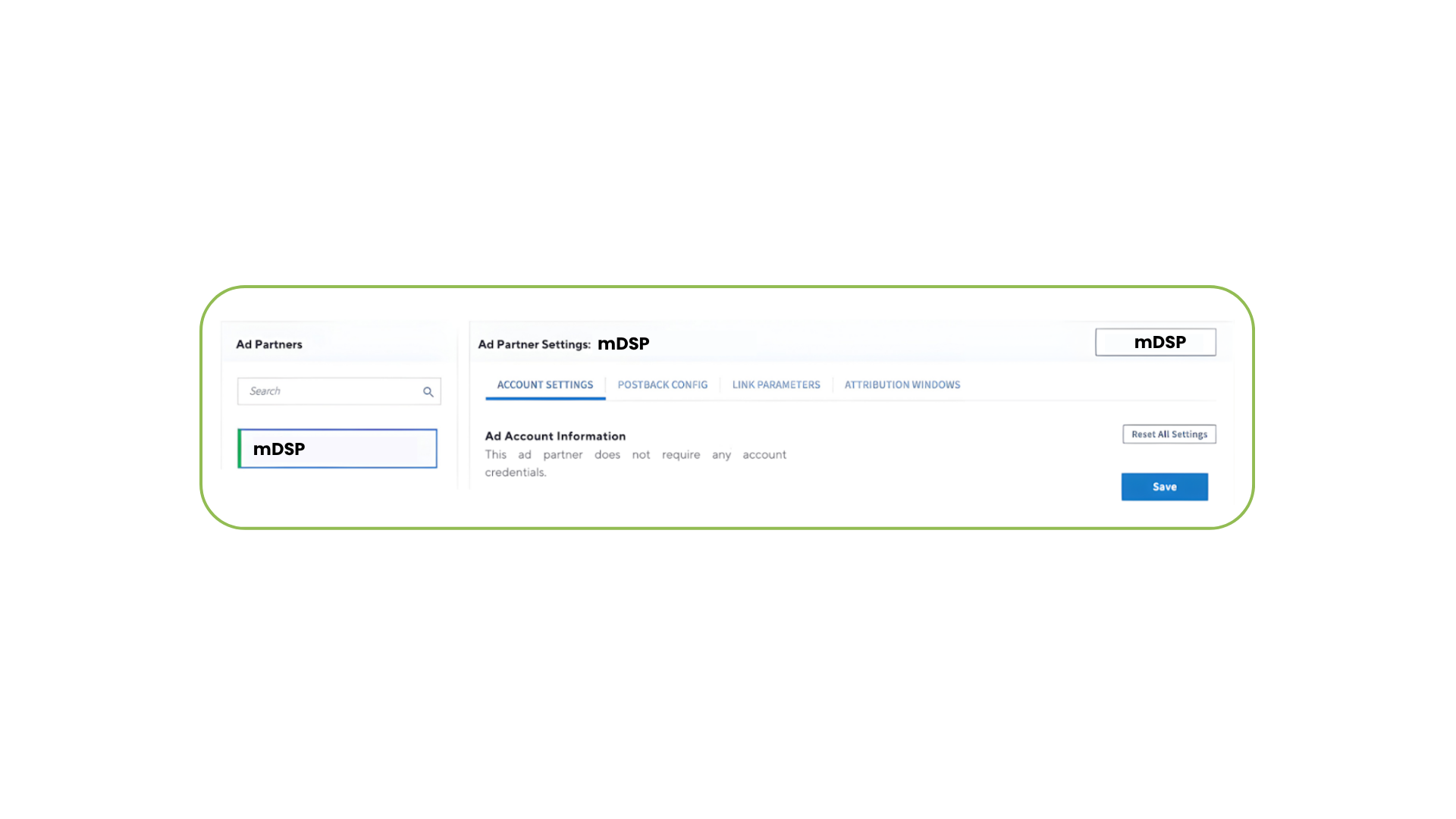
- Search for mDSP and select it as a partner.
- Click Save.
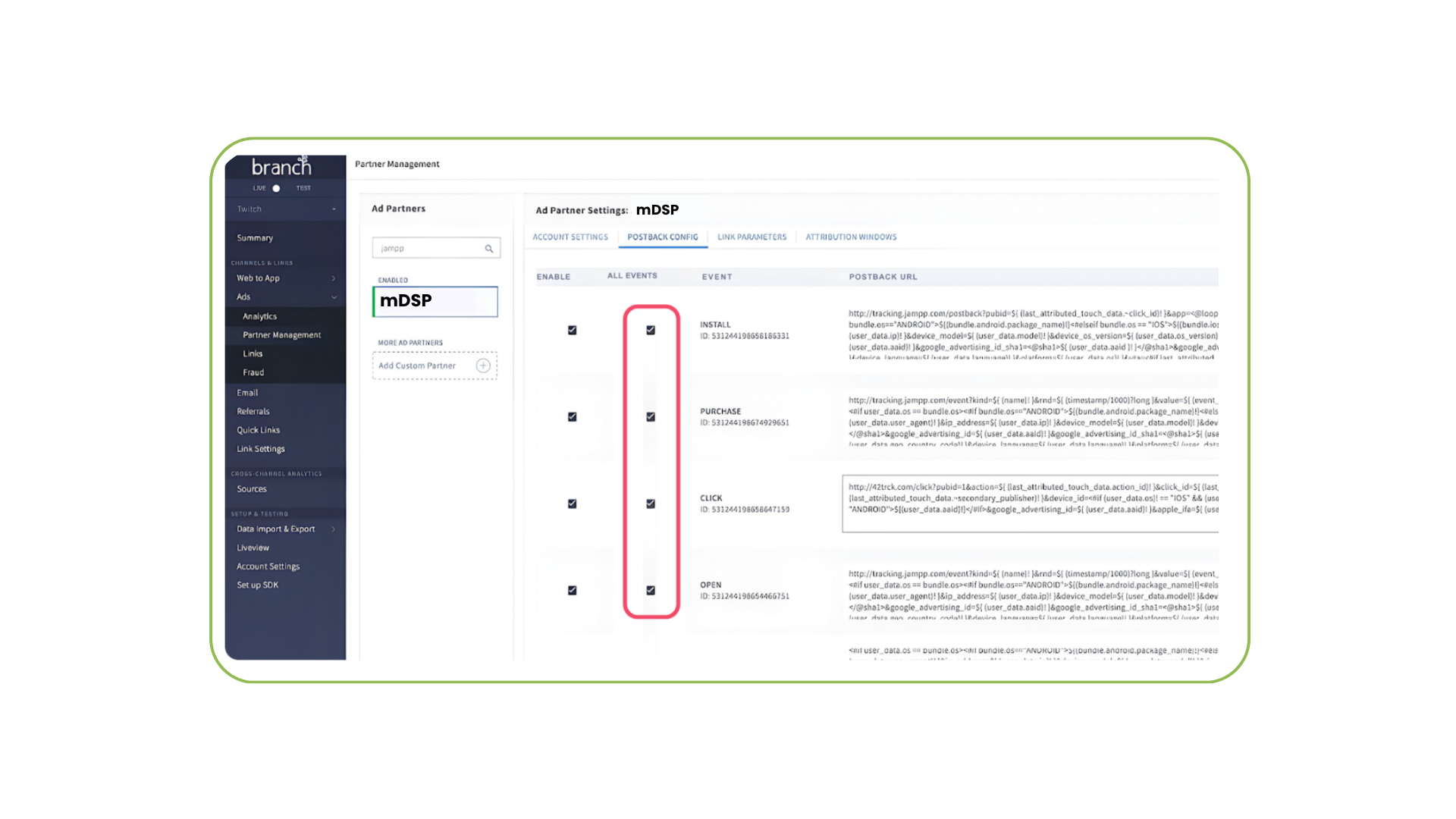
- Verify basic postbacks: Events like Install and Purchase activate automatically when you enable an ad partner.
- Manually enable other events: You must manually toggle any other relevant funnel events.
- Make sure to check the All Events box to share organic data with mDSP.
Generate the trackers
- Select the Links section from the sidebar menu.
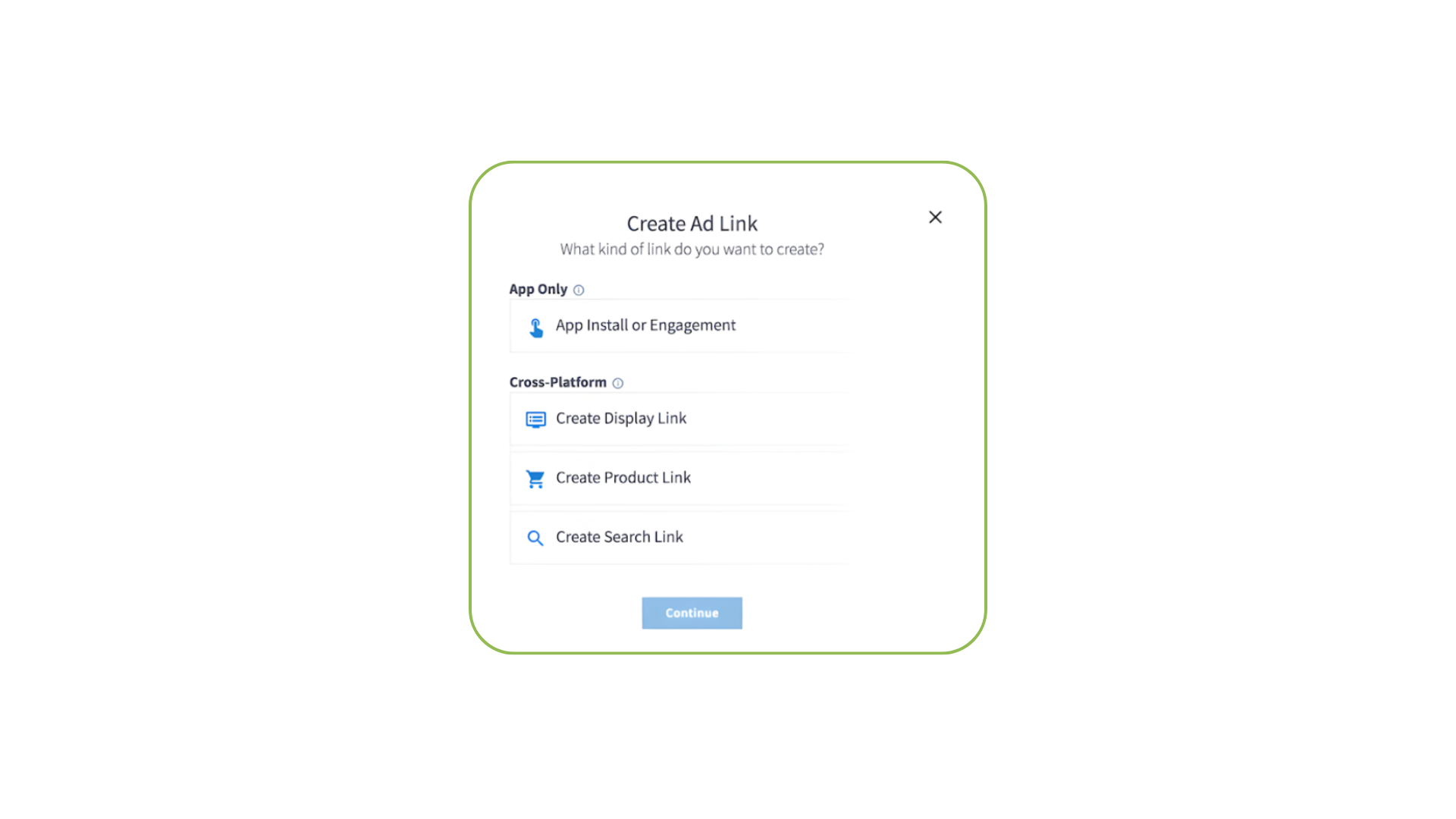
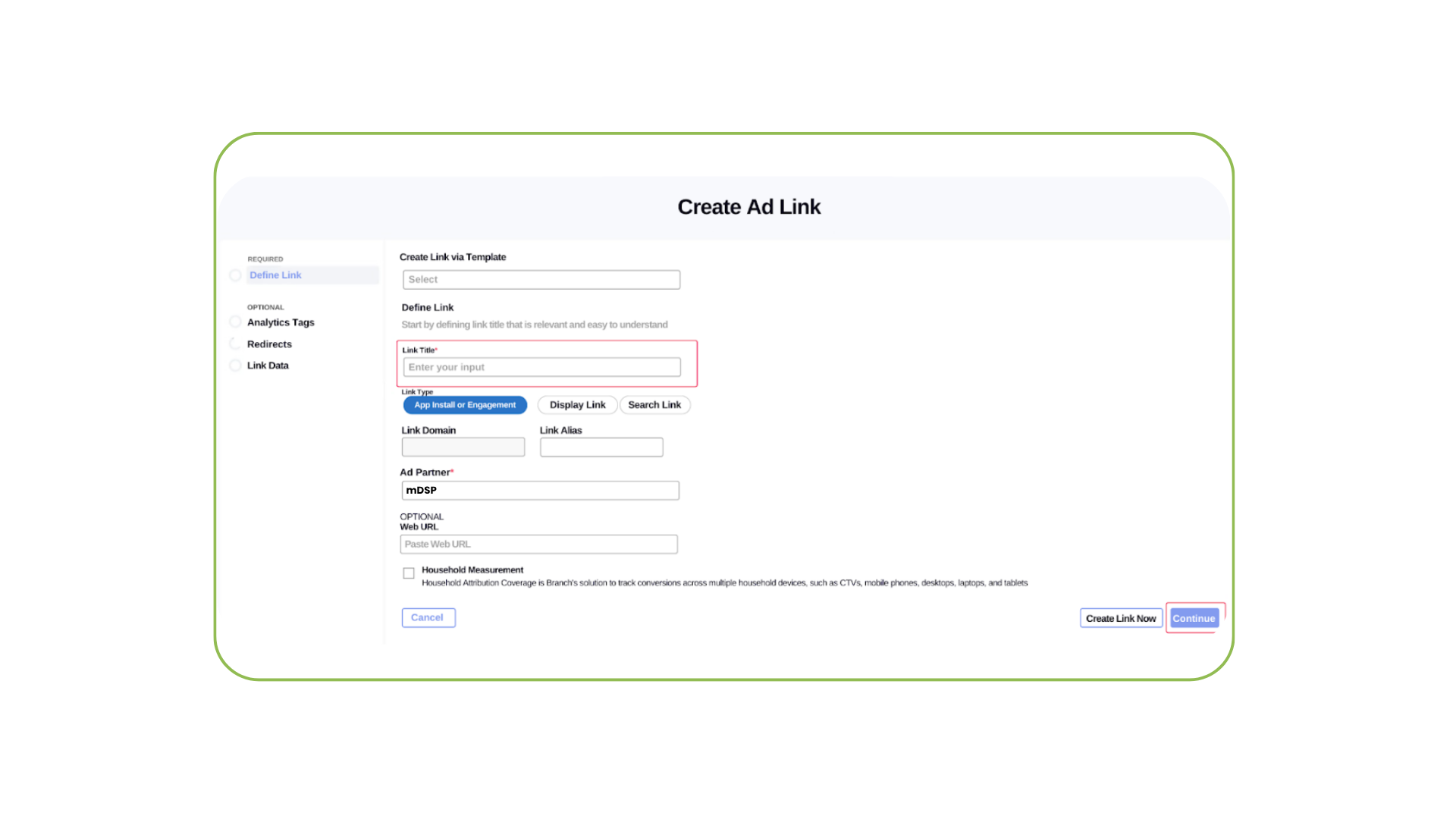
- In the App Only section, select App Install or Engagement. Use this for both User Acquisition and Retargeting campaigns.
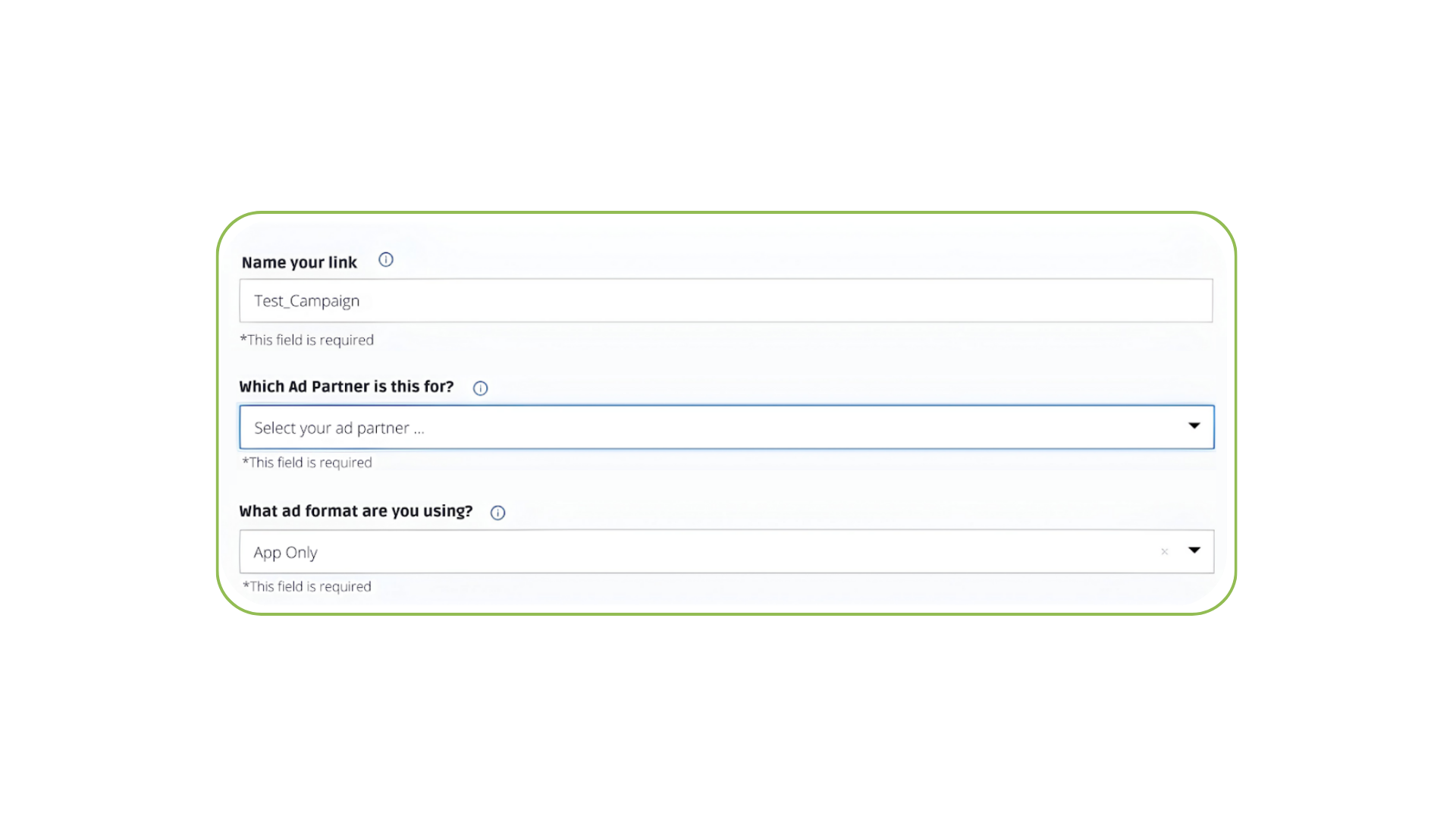
- In the Name your link section, enter a name that is easy to identify for tracking in dashboards (e.g., mDSP_Install_US_Q4_2026).
- Ensure mDSP is selected in the Which Ad Partner is this for? box.
- In the Which ad format are you using? box, select App Only.
- Click Create Link Now to create the tracker.
⚠️ Leave Channel/Campaign /Tags and Analytics Tags as default.
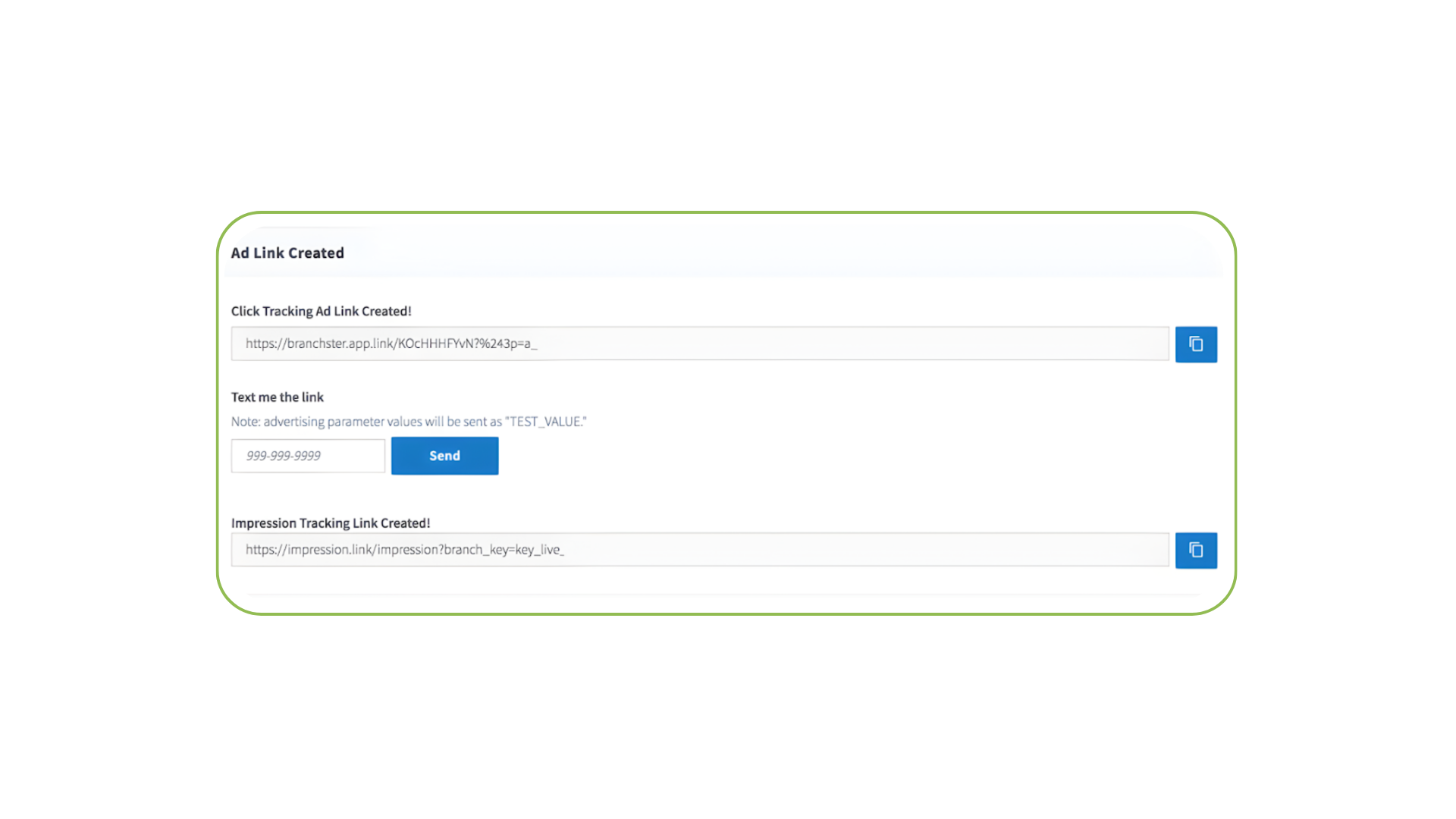
- Copy the generated tracking links and send them to your mDSP Customer Success Manager.
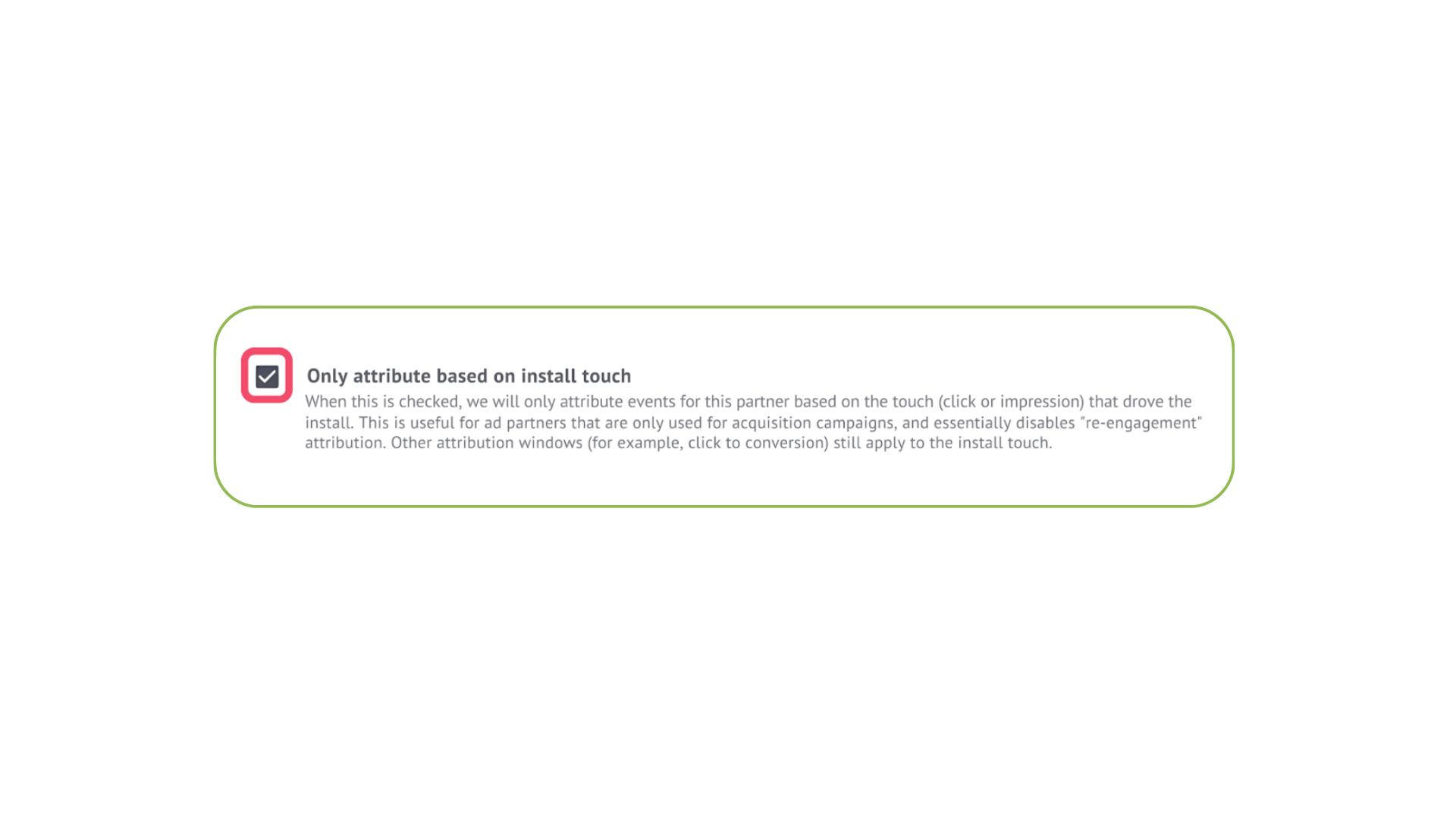
- If you are only running User Acquisition, check the box for Only attribute based on install touch. If you are running Retargeting or Full Funnel campaigns, leave this box unchecked.
⚠️ Important: Make sure to check the Household Measurement option. This feature is part of Branch's Performance Pro package and requires developer support to be enabled. It tracks cross-screen conversions across household devices such as CTV, mobile, desktop, and tablets.
Verify attribution windows
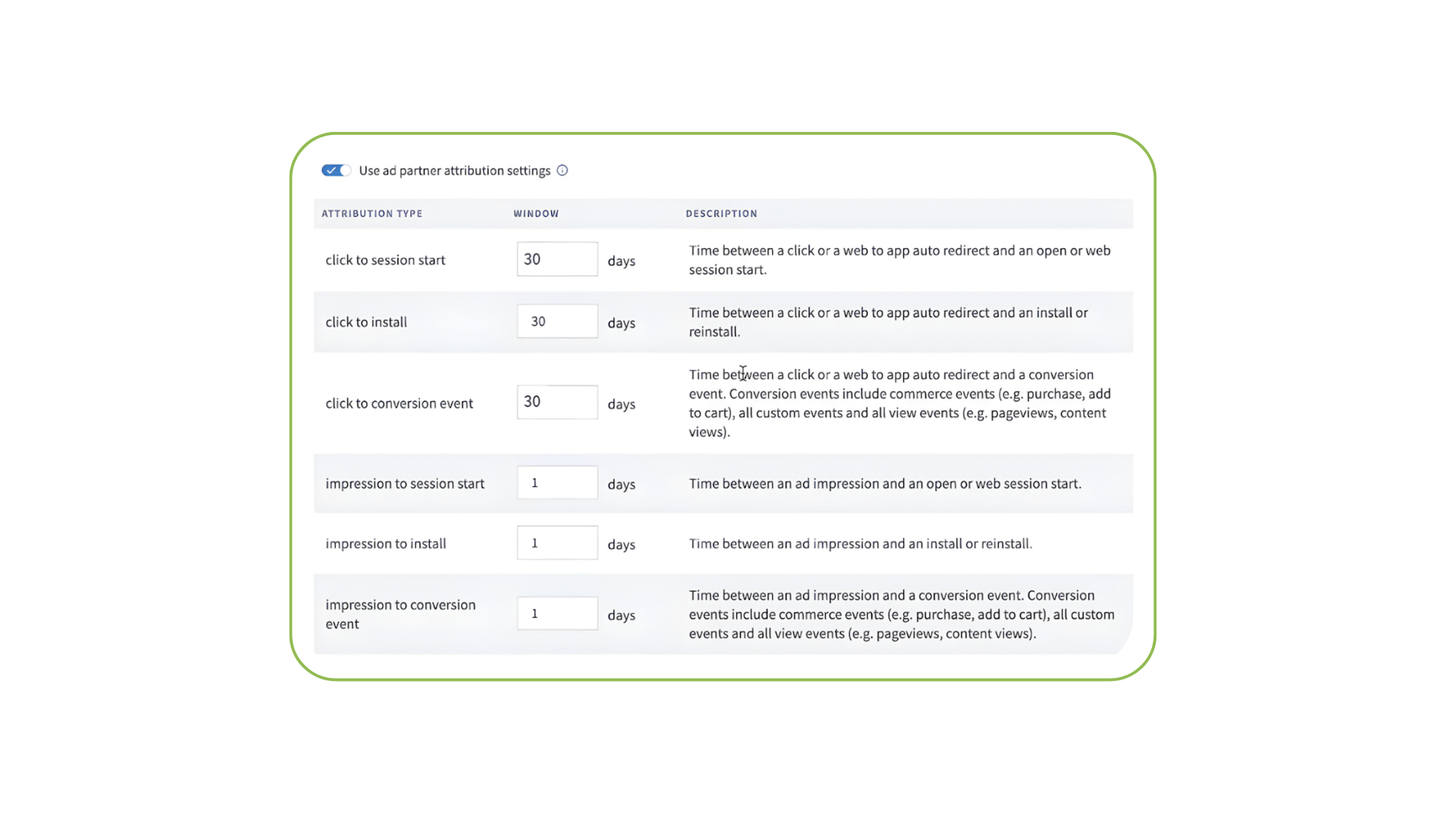
We recommend sharing your attribution rules
- Go to Ads > Partner Management > mDSP > Attribution Window.
- Toggle Use ad partner attribution settings to the On position.
- Take a screenshot of the Attribution Windows page and share it with your mDSP contact to verify that everything looks okay.
Granting partner access
Follow these steps to authorize mDSP to access your specific trackers and data logs within Branch.
- Open the Account Settings section from your Branch dashboard.
- Click on the Agencies tab.
- Click the Add New Agency button and select mDSP from the dropdown menu.
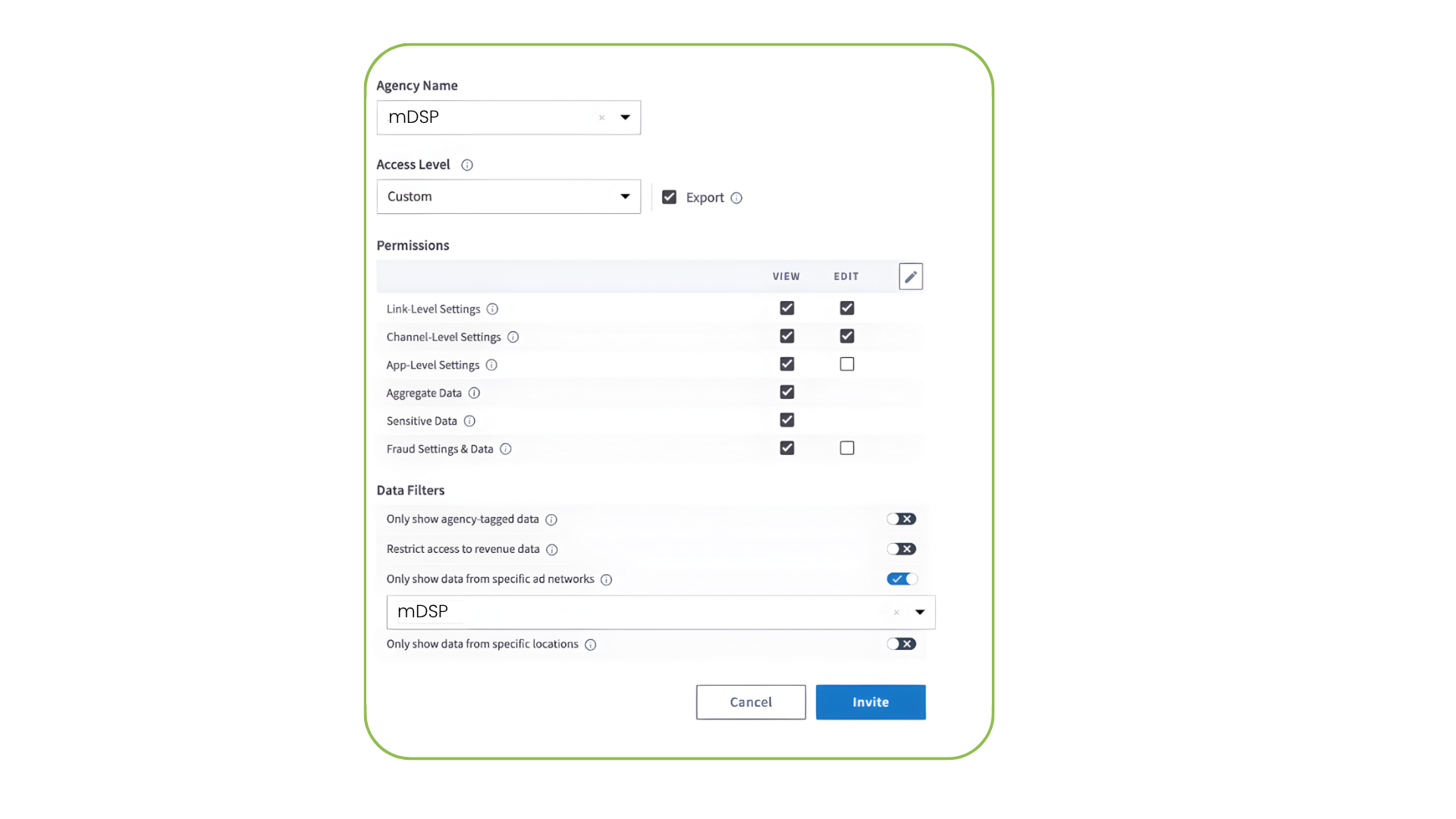
- Select Admin level access to allow mDSP to export data and verify settings. If you prefer Custom permissions, ensure you match the required settings below.
- Check the Export box so mDSP can download the necessary logs.
- Ensure Only show agency-tagged data is toggled OFF. If this is enabled, mDSP will not be able to see any data.
- Check both Fraud Settings & Data and Sensitive Data to enable ID matching at the impression level.
- Click Continue. mDSP admins will receive an email to accept the invitation on behalf of mDSP.
Configure API credentials
To finalize the connection between mDSP and Branch, you must authenticate your account and enable cost data sharing.
Get user credentials (API Keys)
- In your mDSP Dashboard, go to the Credentials section.
- Note: If you do not have dashboard access, contact your mDSP Customer Success Manager.
- Generate a set of credentials consisting of a Description, Client ID, and Client Secret.
- Tip: Create a unique API key for each integrated service so you can manage or revoke access individually. You can generate as many credentials as you need.
- Navigate to the Applications section and copy the unique ID for each app you want to share data for.
Enable cost data sharing in Branch
- In Branch, go to Ads > Partner Management and search for mDSP.
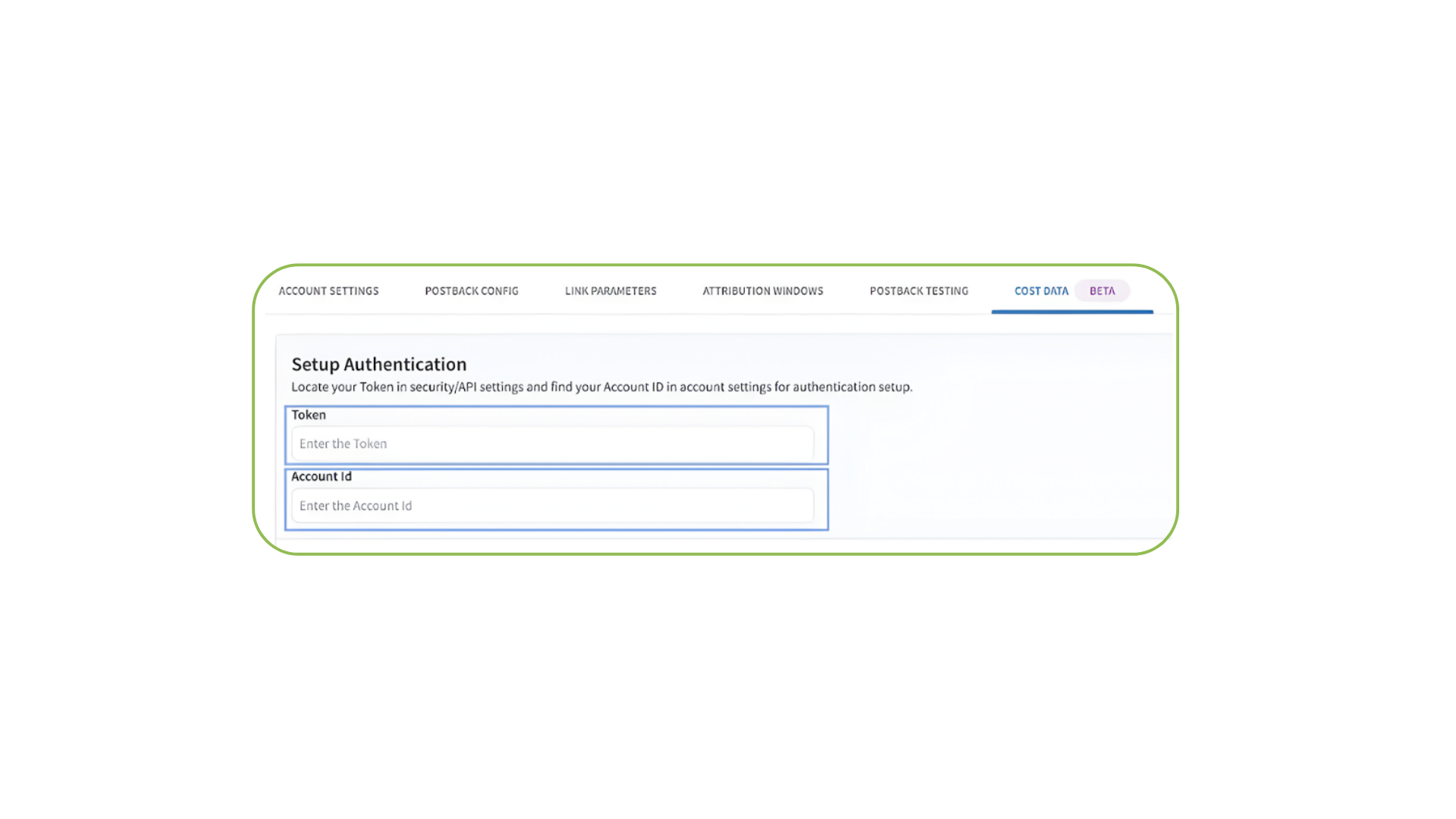
- Select the Cost Data tab.
- Enter your mDSP Ad Account ID and Token ID.
- Click Save Authentication.
Data synchronization typically takes 24 hours before spending details appear on your Branch dashboard.