1. Add mDSP as a Partner
To begin the integration, enable mDSP within the Singular dashboard to allow for data exchange and attribution tracking.
- From the main navigation menu on the left, go to Partner Setup.
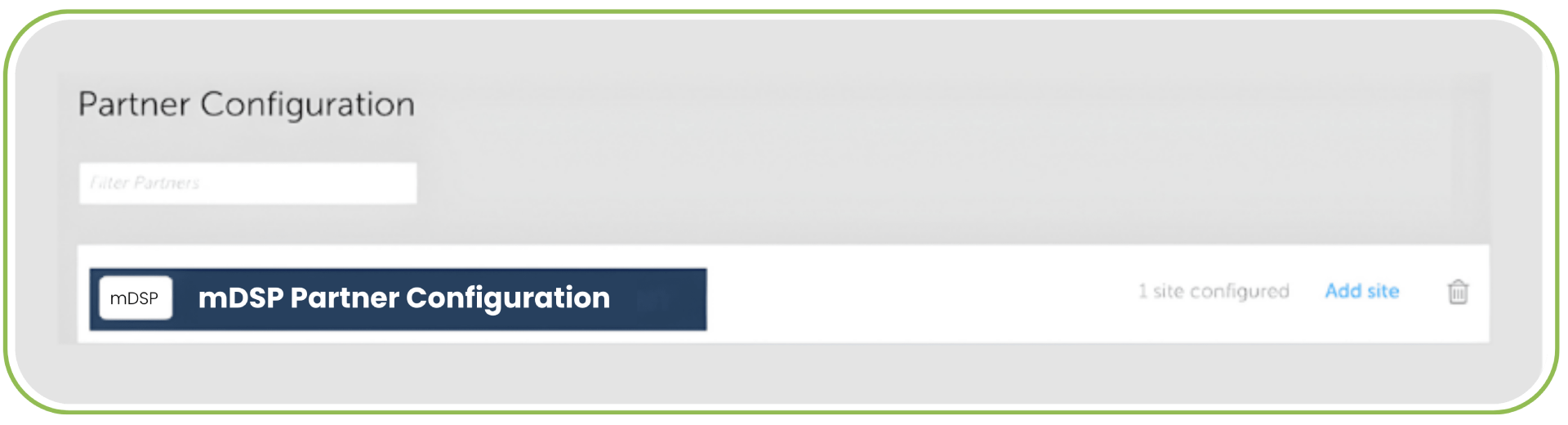
- Click on Partner Configuration.
- Click the Add Partner button.
- In the search bar, type "mDSP" and select it from the list of available partners.
- Choose the app (iOS or Android) you want to connect.
2. Set Up Postbacks & Data Sharing
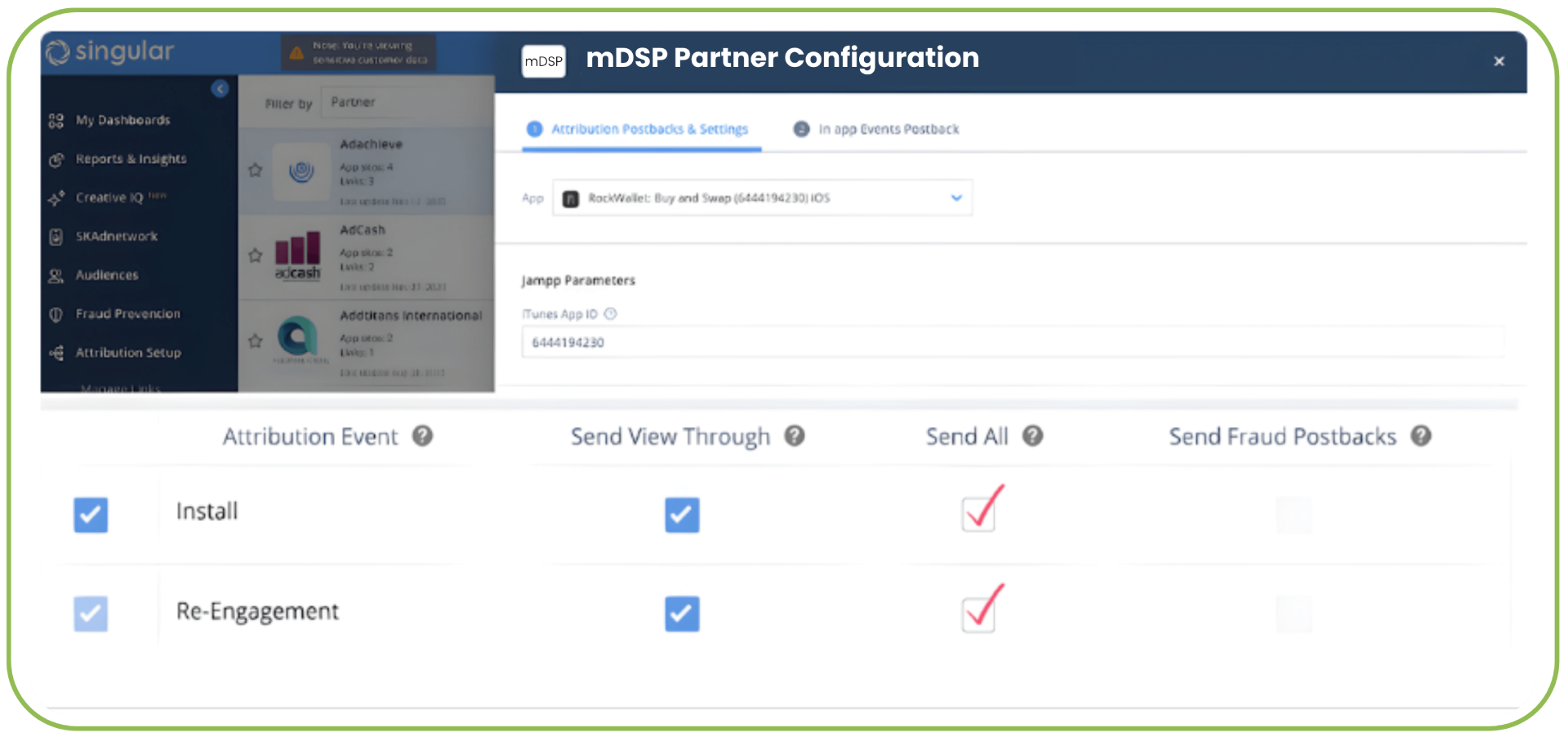
After selecting mDSP as a partner, you'll land on the settings page, where you'll set up postbacks, attribution windows, and revenue event sharing.
All you need to do is make sure that Send All fields are ticked.
3. Update Attribution Window Settings
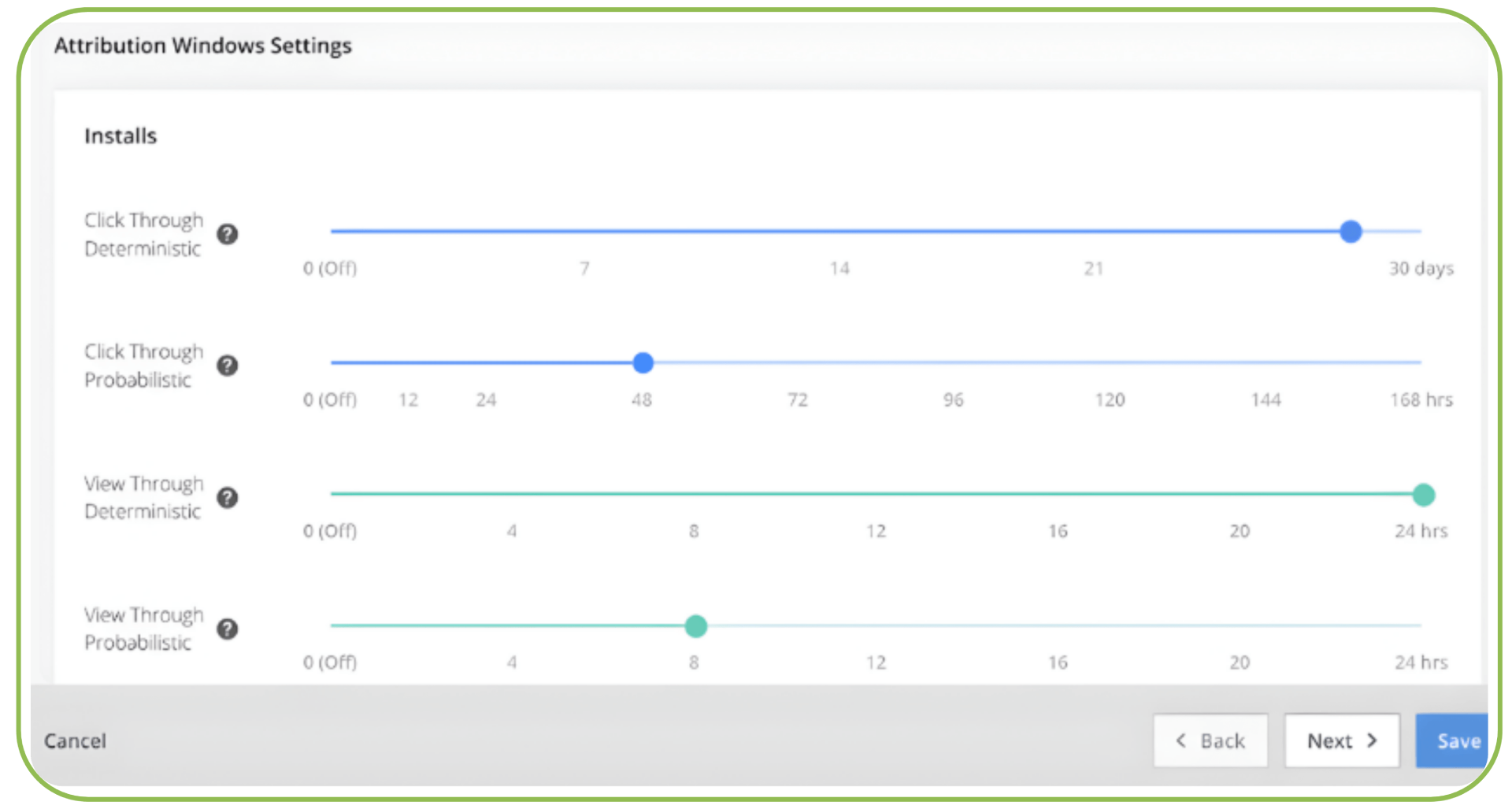
Update the following settings within the Attribution Windows Settings section:
- Click-through deterministic: 30 days.
- Click-through probabilistic: 48 hours.
- View-through deterministic: 24 hours.
- View-through probabilistic: 8 hours.
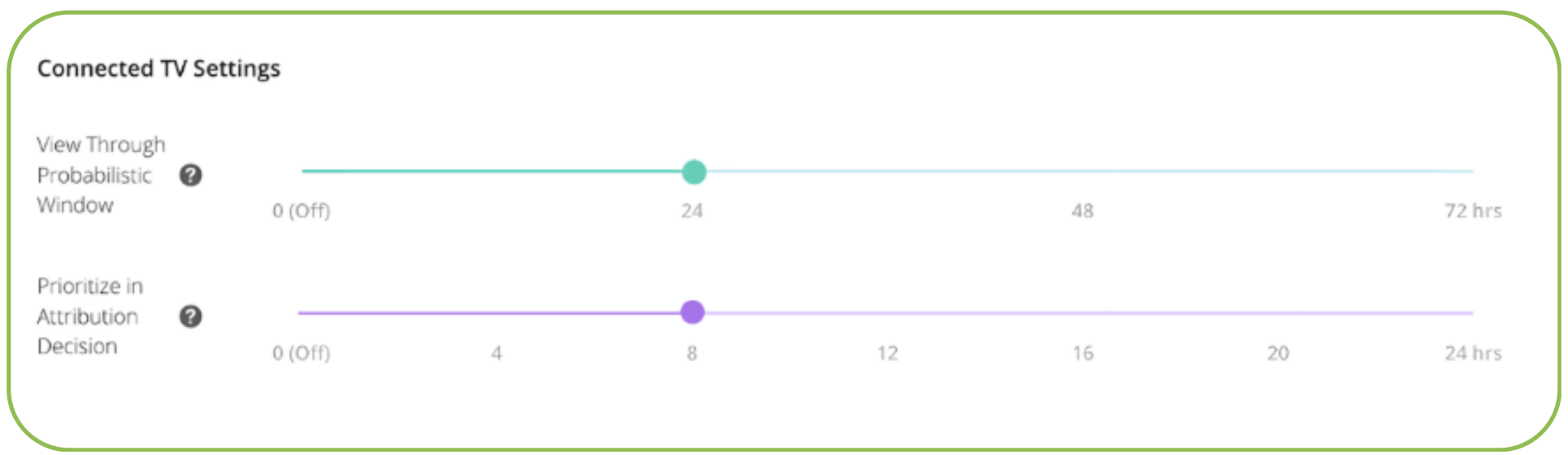
4. Configure Connected CTV Settings (mDSP CTV Campaigns Only)
If you are running CTV campaigns, adjust Prioritize in Attribution Decision to 8 hours. This configuration allows Singular to consider Jampp CTV impressions within a valid attribution window.
5. Enable Revenue and Event Postbacks
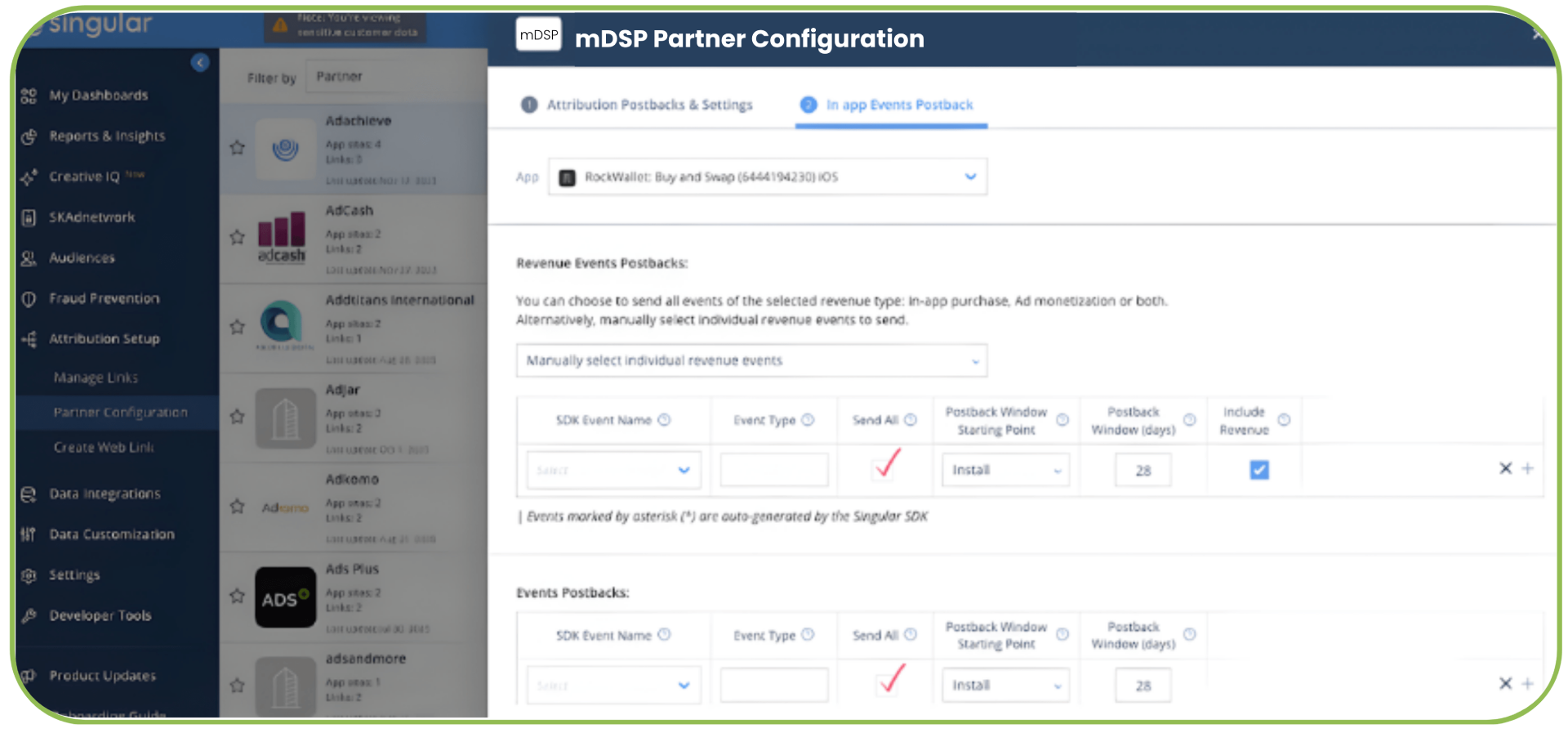
On the next screen, you must configure event-level postbacks. These are divided into two groups: Revenue Events and Funnel Events.
For both event groups, ensure the following settings are applied:
- Always select Send All.
- Enable the "Include Revenue" box when applicable.
- Keep the default window duration unless the advertiser specifies a different timeframe.
6. Create Tracking Links
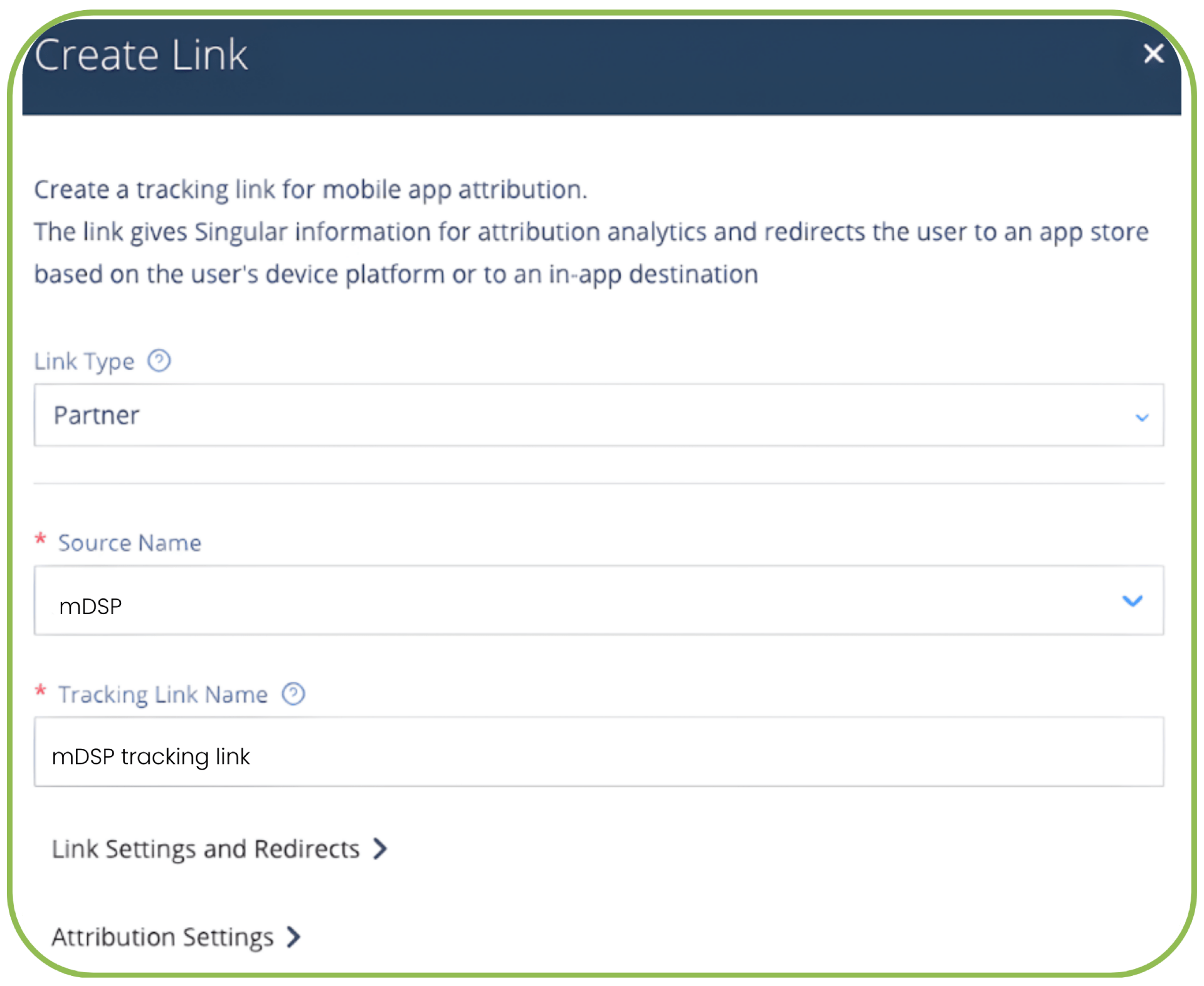
- From the main menu, go to Attribution Setup.
- Go to Manage Links > Create Link.
- Set the Link Type to Partner.
- Set the Source Name to mDSP.
- Enter a name for your tracking link.
Under the Attribution Settings section, no further modifications are required. mDSP automatically handles the following components:
- Redirects
- Attribution deeplinking
- SDK callback parameter
💡 Note: Only enable iOS or Android, depending on which specific platform you are currently activating.