Add mDSP as a New Partner
To start your integration, you need to add mDSP as a partner within the Adjust dashboard.
1. Open the Campaign Lab section and click on New partner.
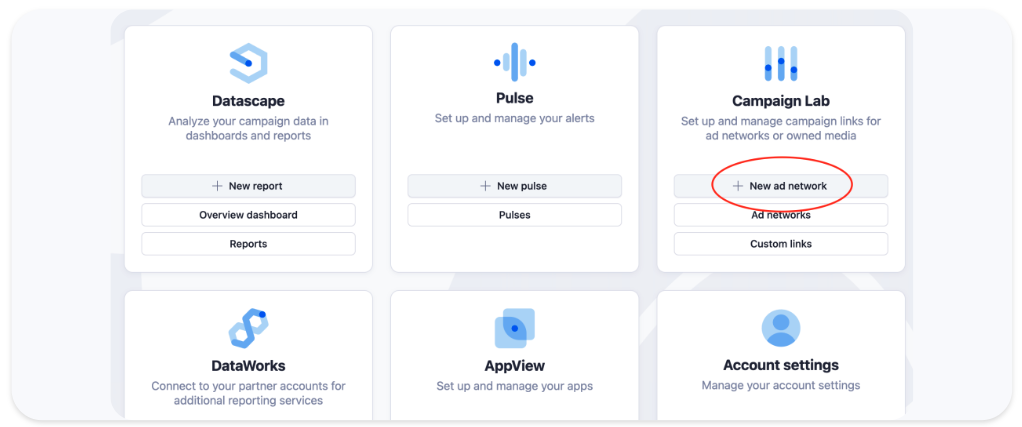
Another way to do it: Select Campaign Lab from the left-hand sidebar. Select Partners. Click the blue New partner button in the top right corner.
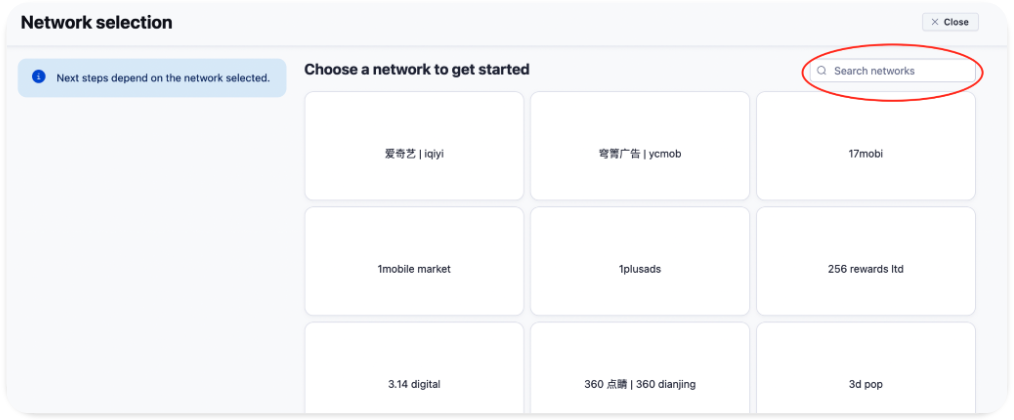
2. Use the Search networks bar in the top right. Type "mDSP" and select it from the results to proceed to the configuration.
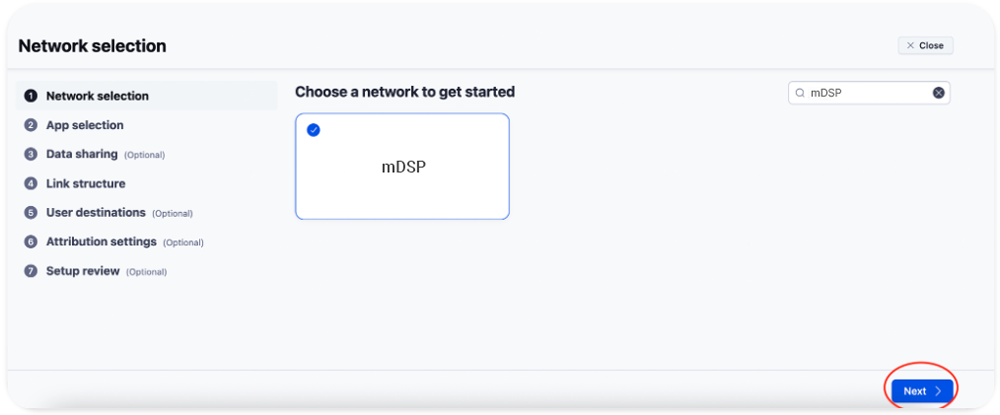
3. After selecting mDSP, verify your selection: a blue checkmark will appear in the top-left corner of the mDSP card. Then, click the blue Next button in the bottom-right corner to move to App Selection.
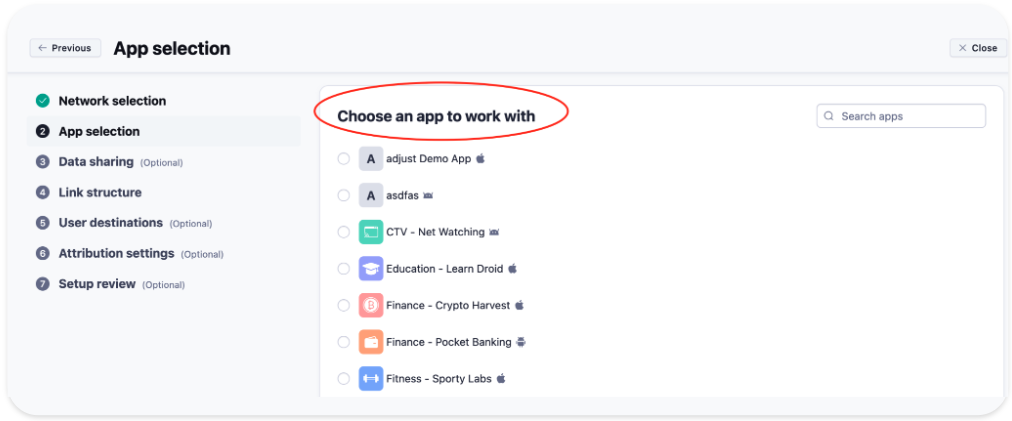
4. In the App selection screen, choose the specific app you want to promote with mDSP:
- Browse the list or use the Search apps bar to find your app.
- Select the app and click Next.
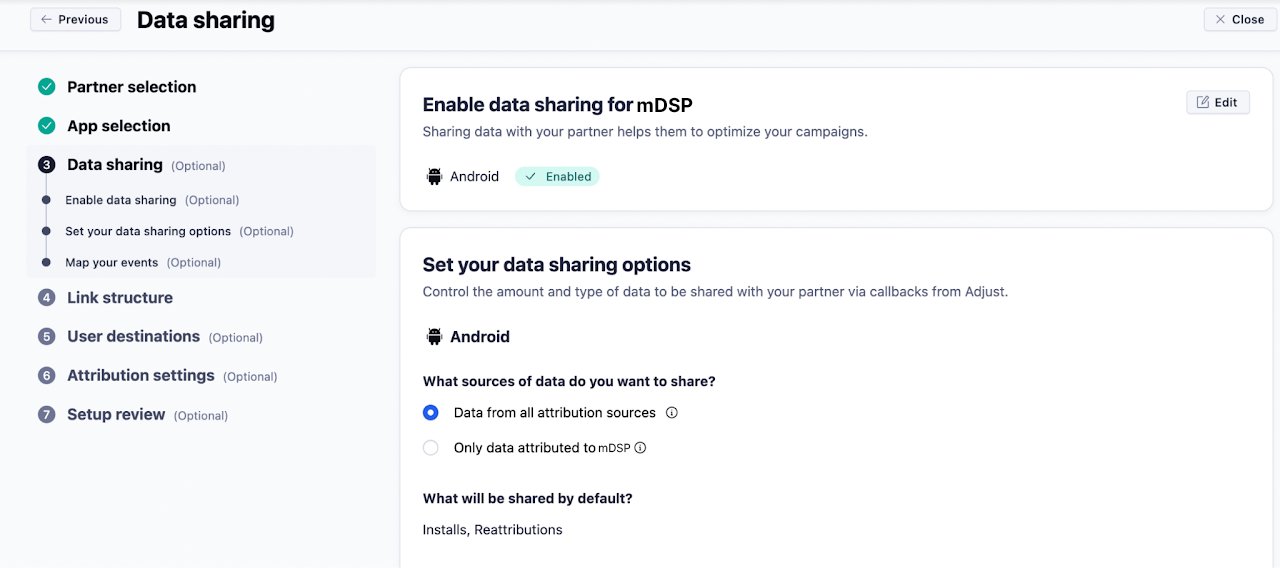
Enable Data Sharing
To allow mDSP to track your campaign performance and optimize effectively, you must enable data sharing. Ensure the main switch for mDSP is enabled.
When available, also toggle or enable the "Uninstalls/Reinstalls" option ON to provide more granular performance data.
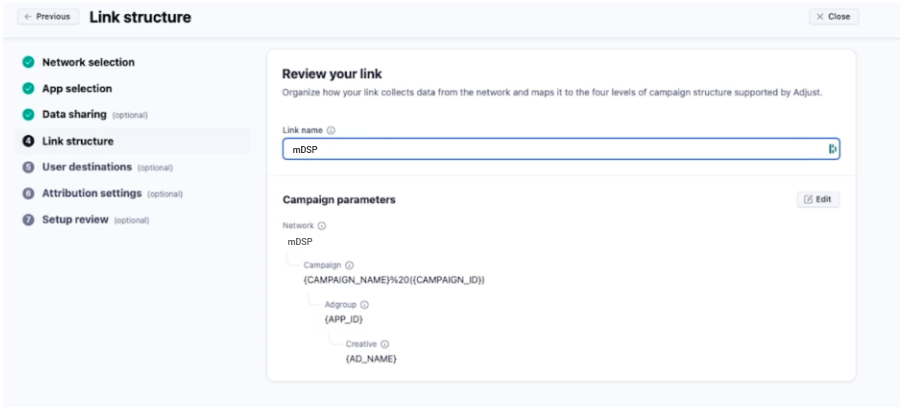
Map All Your Events
Click the Map all events button to ensure every relevant in-app action is shared with mDSP.
💡 Adjust maps the "Install" event as event number one by default. When adding additional events, ensure you match each one with its corresponding event number in the mDSP platform.
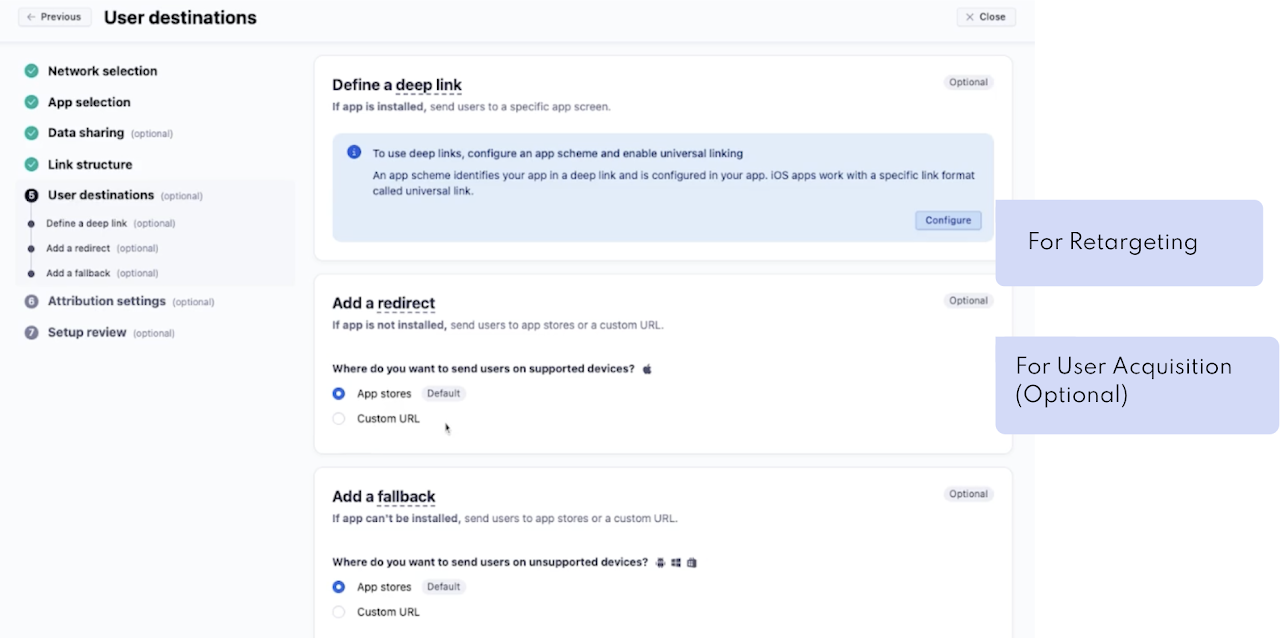
Set Up Your Link Structure
In this section, you define how your tracking links are built.
1. We recommend keeping the default link structure. This ensures that all necessary parameters are correctly passed between Adjust and mDSP.
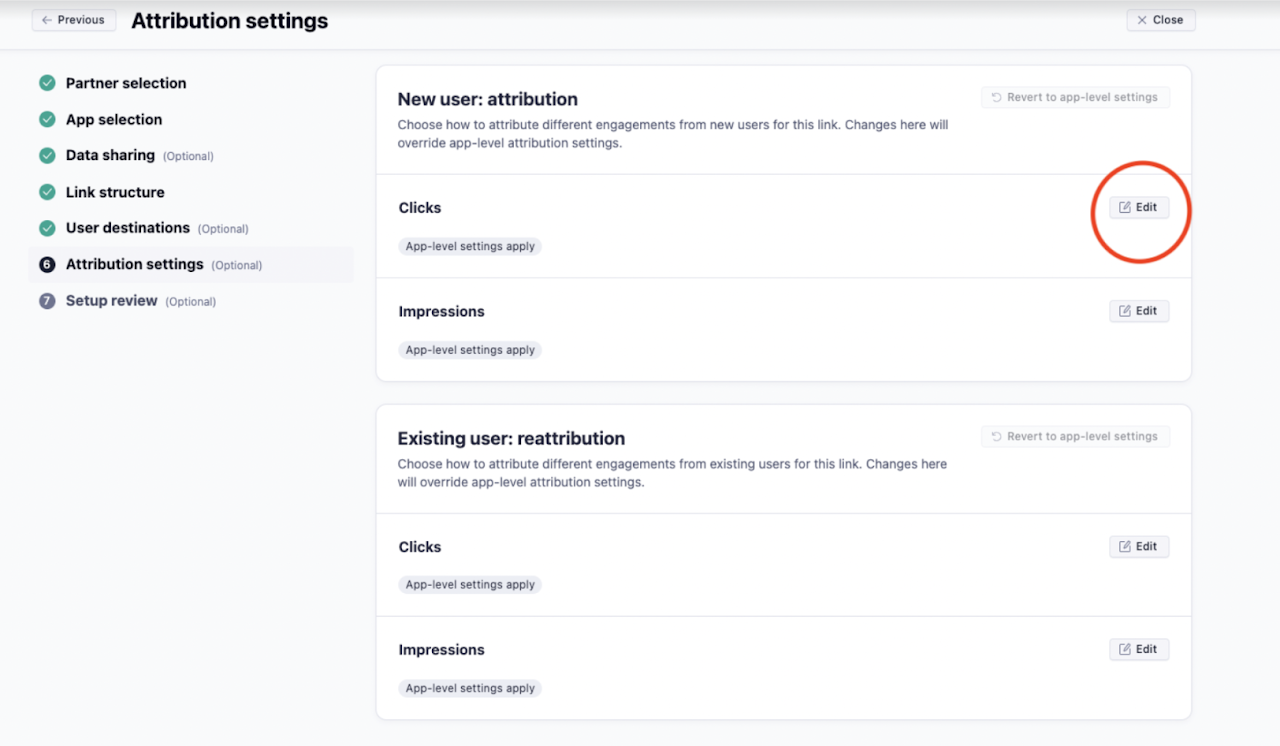
2. Decide where users should land after clicking your ad.
For User Acquisition campaigns: You can leave the "Deep Link" field empty. New users will be automatically redirected to the app’s home screen after installation.
For Retargeting campaigns: We strongly suggest defining a specific in-app destination (e.g., product page, section) to improve re-engagement performance and conversion rates.
Configure Attribution Settings
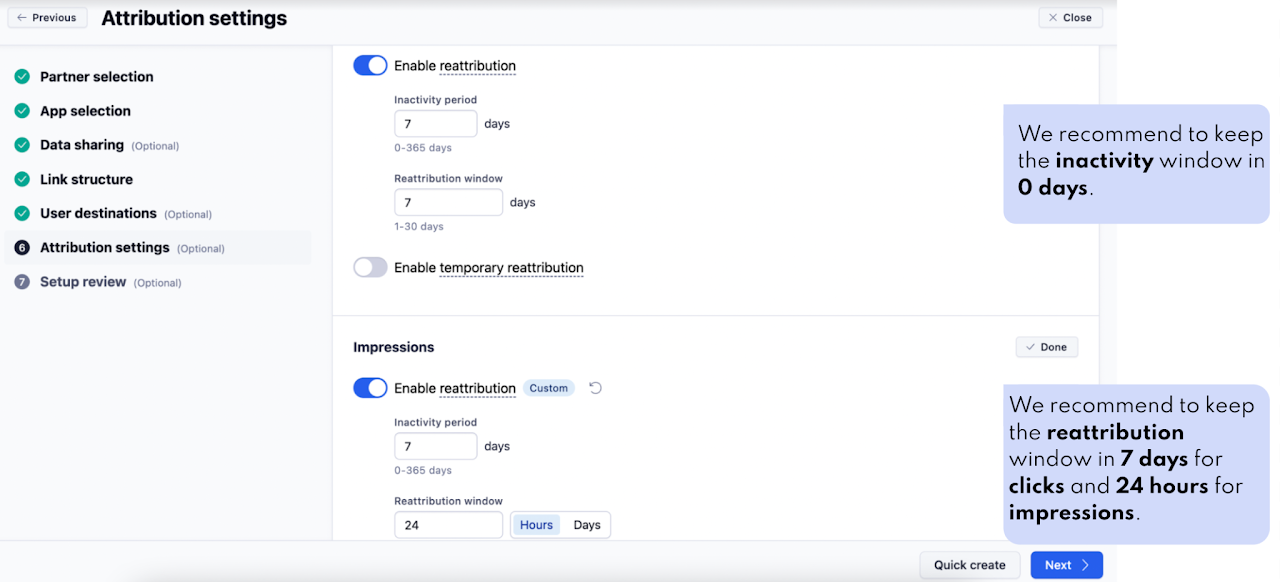
In this step, you will define how Adjust credits installs and re-engagements to your mDSP campaigns. Use the recommendations below to ensure your reporting is accurate.
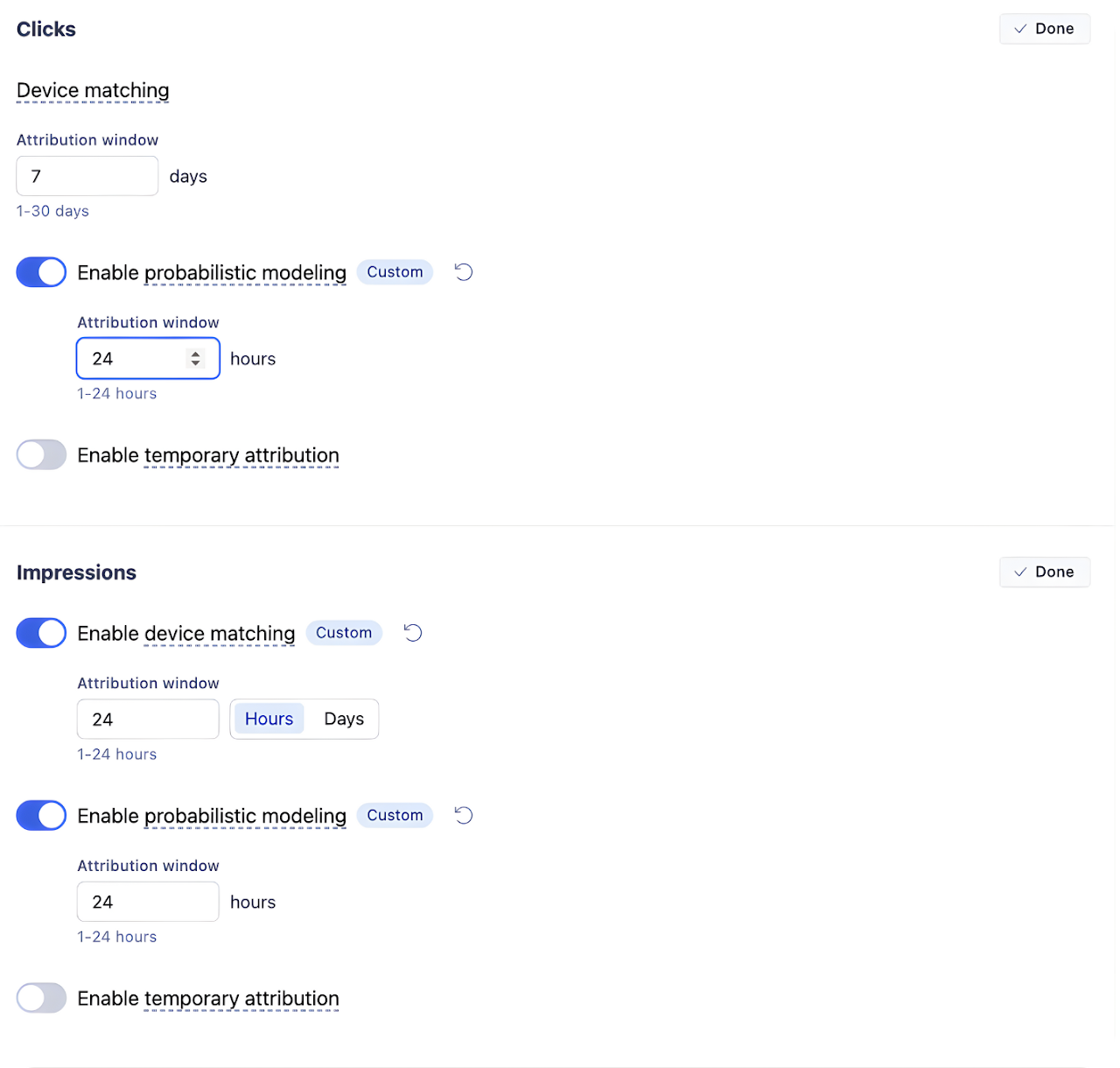
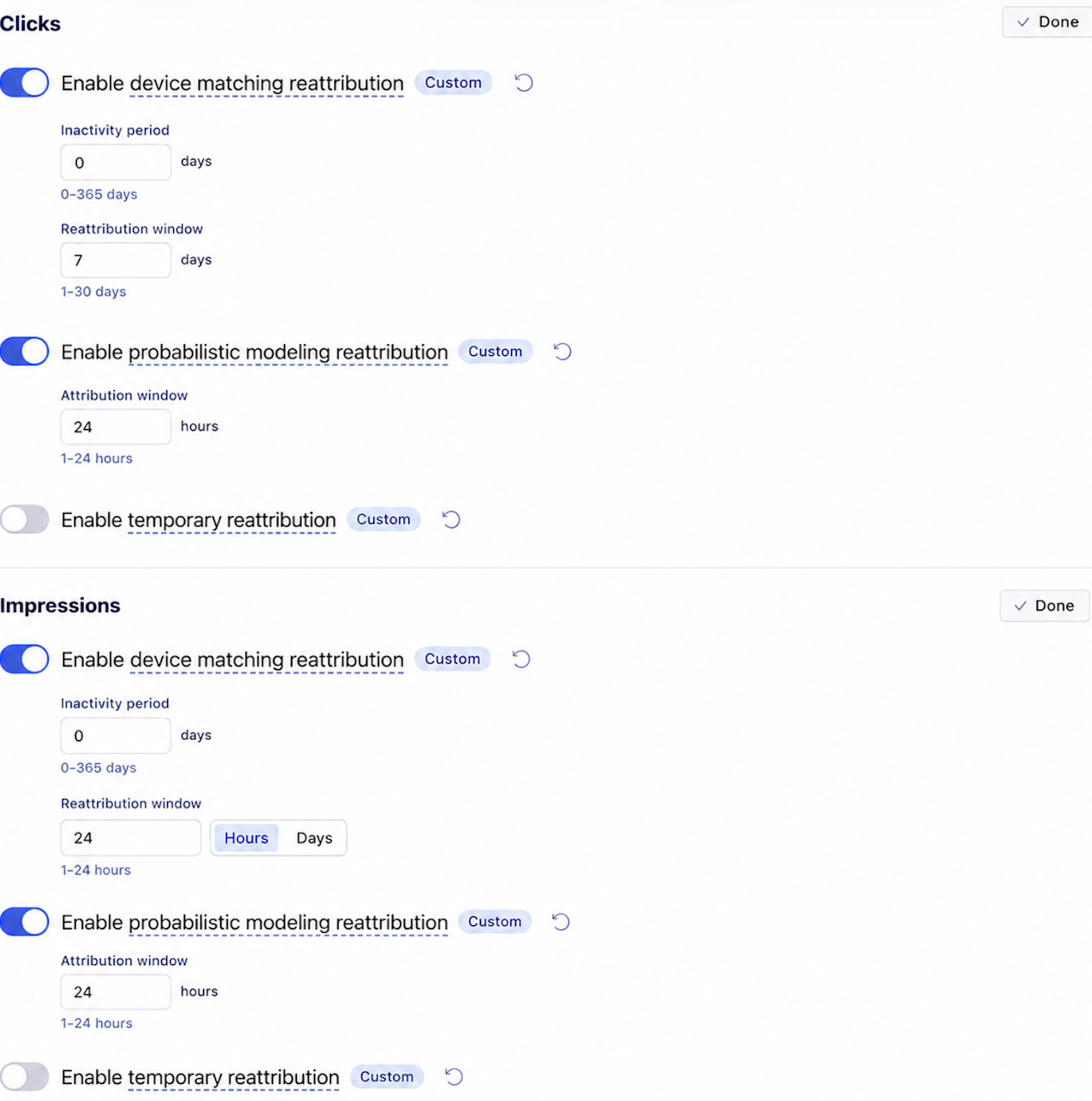
Configure Reattribution Settings
To ensure your Retargeting campaigns are tracked accurately, use these recommended settings.
Create the Tracking Link
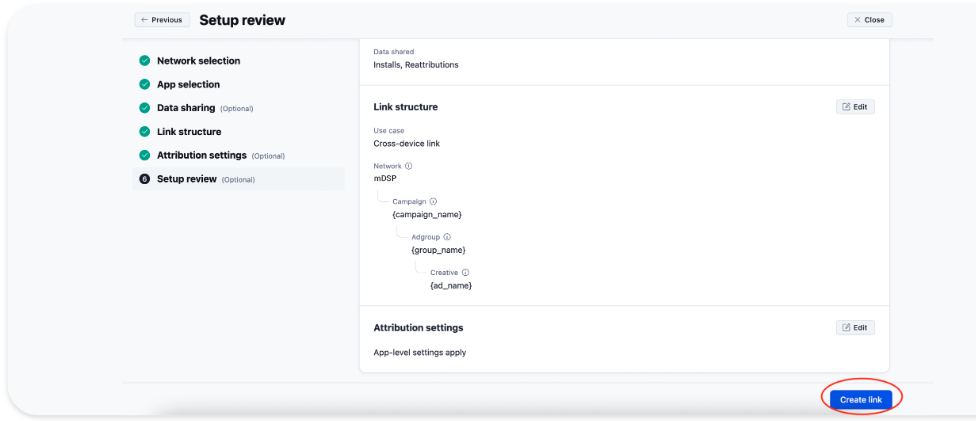
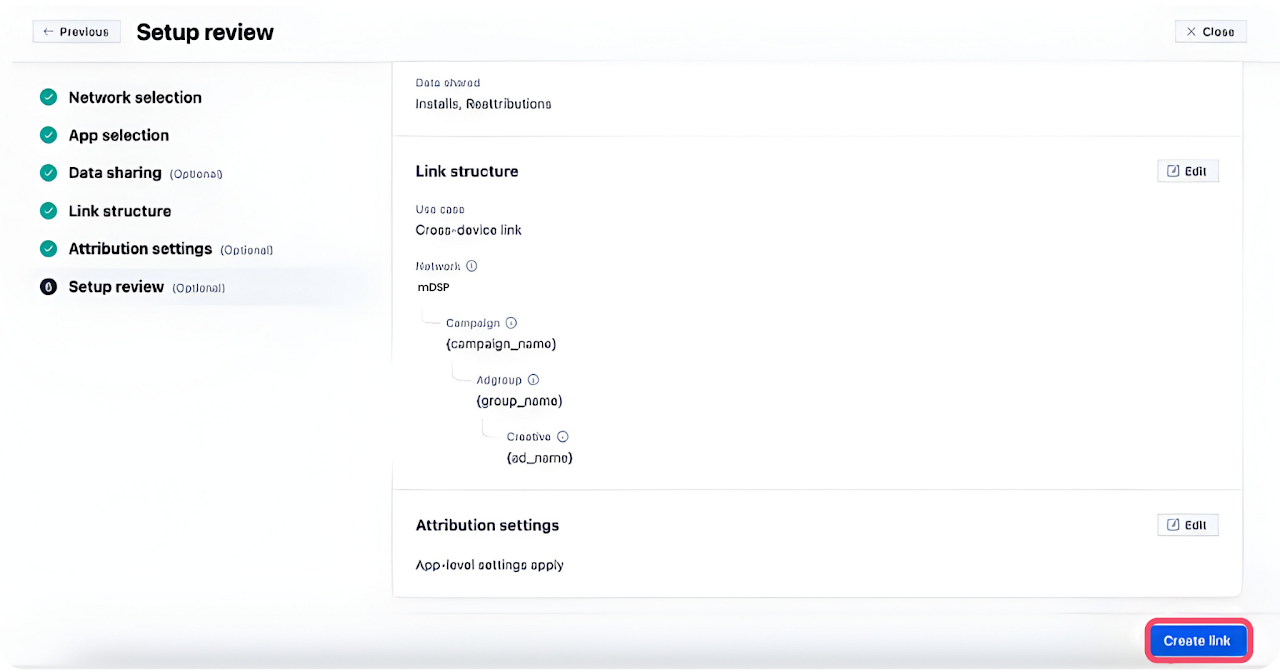
Before finishing, use the Setup Review section to verify your configuration. This is the final step to ensure all settings align with our recommended structure.
Final Verification Checklist
- Review Link & Attribution: Double-check that your link structure and attribution windows are set as previously indicated.
- Verify Data Sharing: Under the Setup Review tab, expand the Data Sharing section to ensure all event toggles and "Map all events" settings are active.
Once you have confirmed that all settings are correct, click the blue Create link button in the bottom-right corner to complete your mDSP integration.
Grant mDSP Account Access
Follow these steps to add mDSP as a user in your Adjust account so our team can help monitor and optimize your campaigns.
Navigate to the Users Area
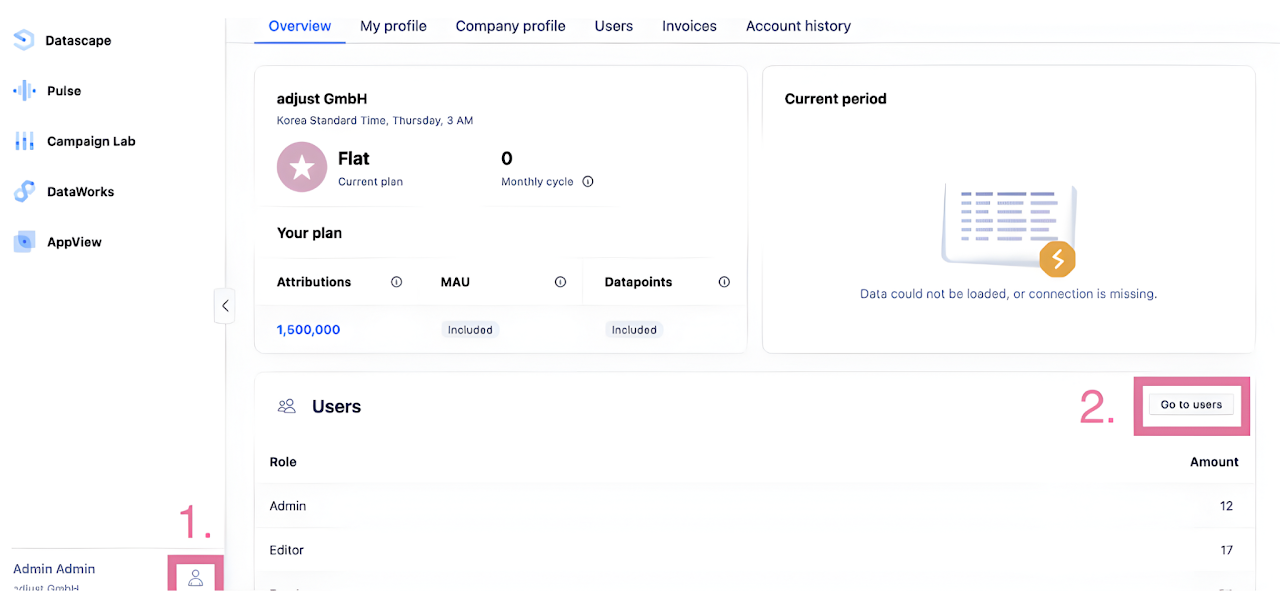
- Hover over the Profile icon in the bottom-left corner of the dashboard.
- Select Account Settings.
- Select the Users tab from the top menu.
Add mDSP as a User
- Click the blue New user button.
- Enter the mDSP user details provided by your account manager.
- Click Add User to finalize the invitation.
- Click Add User to finalize the invitation To allow Jampp to monitor and optimize your campaign performance, you need to grant acces to our team within your Adjust Dashboard. Please add the following user account: ops@jampp.com
Share Cost Data
To see your mDSP spend directly within Adjust, you need to connect the two platforms using API credentials.
Generate API Credentials in mDSP
Log in to the mDSP Dashboard to create your keys. If you don't have dashboard access, please request these credentials from your mDSP Account Manager.
- Navigate to the Credentials section.
- Generate a new set of credentials.
- These credentials will later be used inside Adjust to authenticate the integration with mDSP:
- Description (a label for your reference)
- Client ID
- Client Secret
💡 We recommend creating a unique API key for each service you integrate. This allows you to manage or revoke access independently.
Retrieve Your mDSP App ID
Next, you need to identify which specific apps will share spend data:
- Go to the Applications section in the mDSP dashboard.
- Copy the mDSP App ID for the relevant apps.
- Ensure this ID matches the app you are currently configuring in Adjust.
💡 You can also request the App ID from your mDSP Customer Success Manager if needed.
Activate the Connection in Adjust
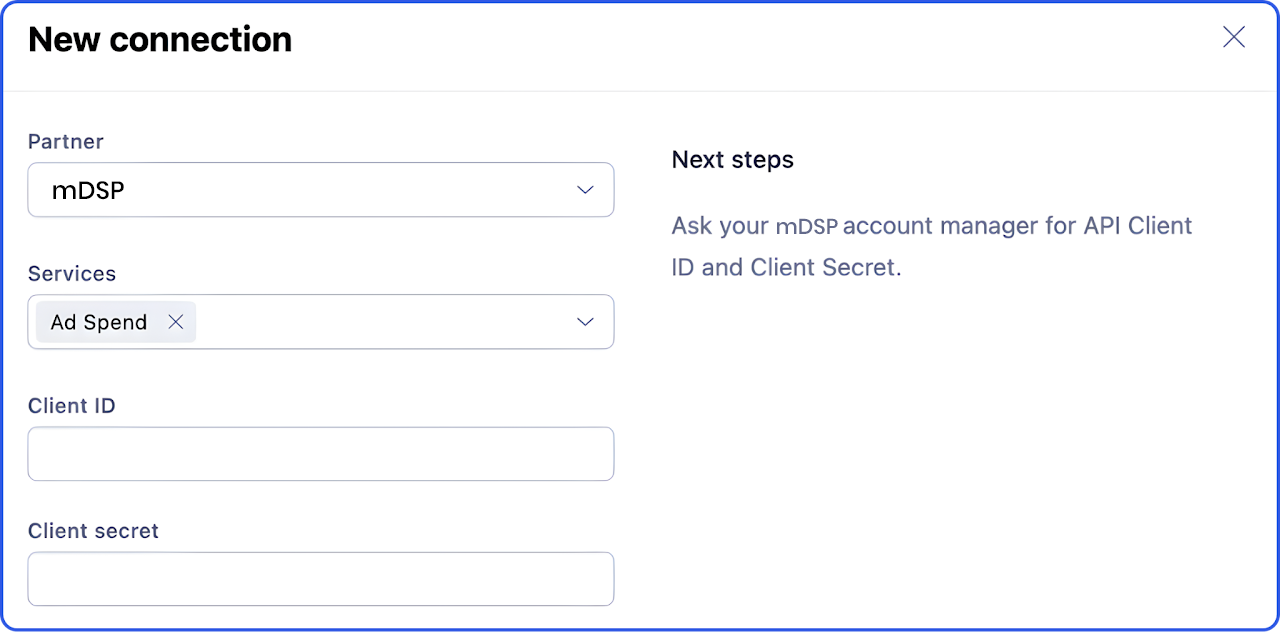
Now, head back to your Adjust dashboard to finalize the link.
Important Reminders
- App ID Accuracy: You must use the mDSP App ID for your specific app as required during setup; using a different ID will prevent spending data from being tracked.
- Connection Name: You can choose any name for this connection (e.g., "mDSP Cost Integration"). This name is for your internal reference and does not affect the data flow.