Activate Partner
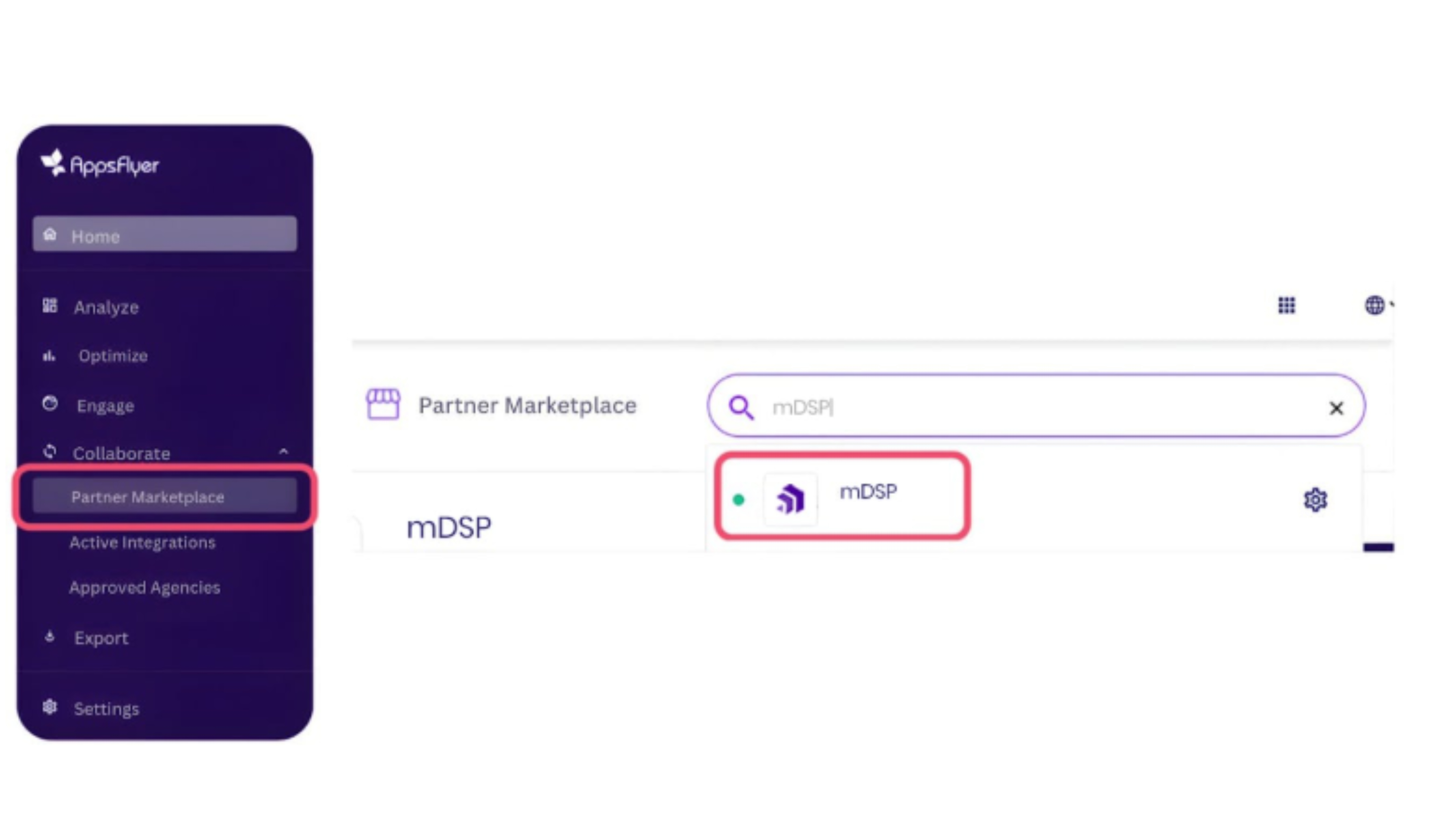
1. Navigate to Collaborate > Partner Marketplace and search for mDSP and select the "mDSP" option.
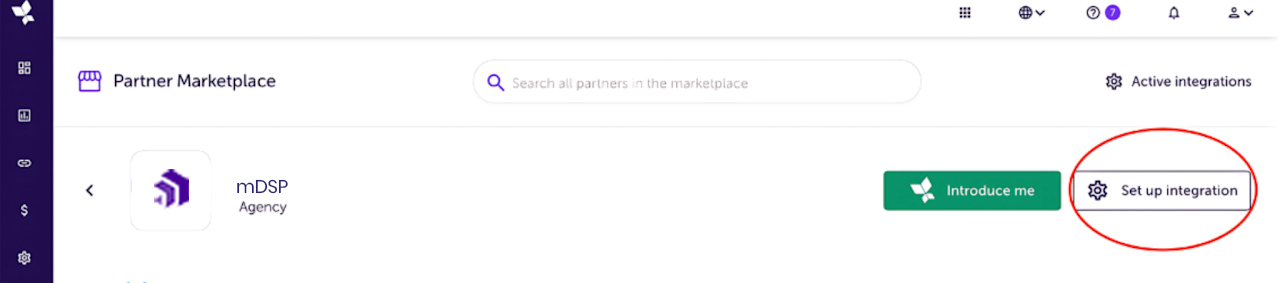
2. Click Set up integration.
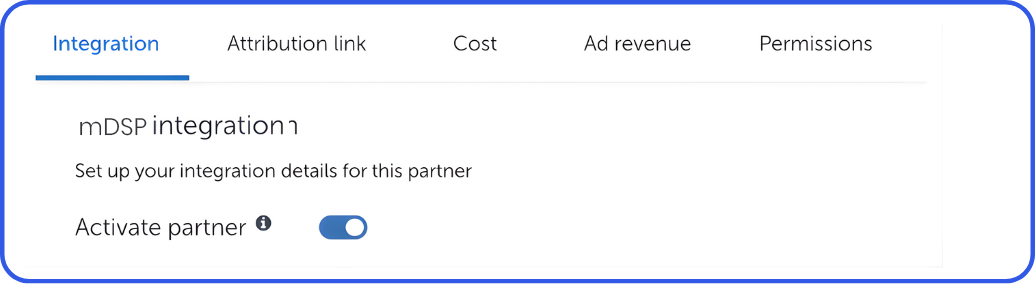
3. Under the Integration tab, toggle Activate Partner to ON and click Save to enable the connection
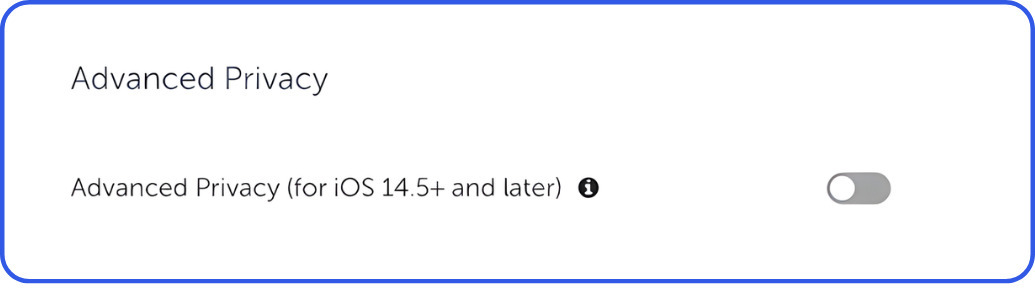
4. Keep the Advanced Privacy toggle OFF to allow full event and revenue sharing for optimization purposes.
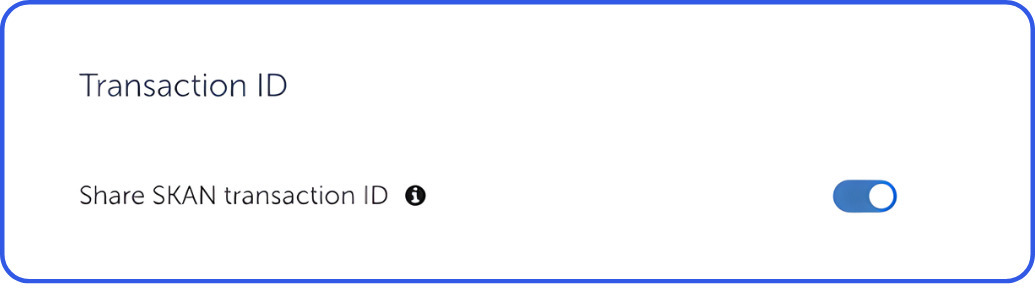
5. Share SKAN Transaction ID: Toggle ON (Required for SKAdNetwork reporting).
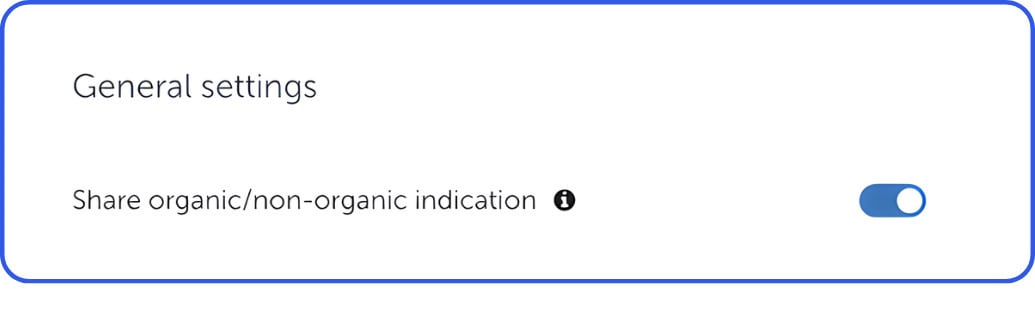
6. Share organic/non-organic indication: Toggle ON (Recommended to help us identify the source of each postback).
Set Default Postbacks (UA Campaigns)
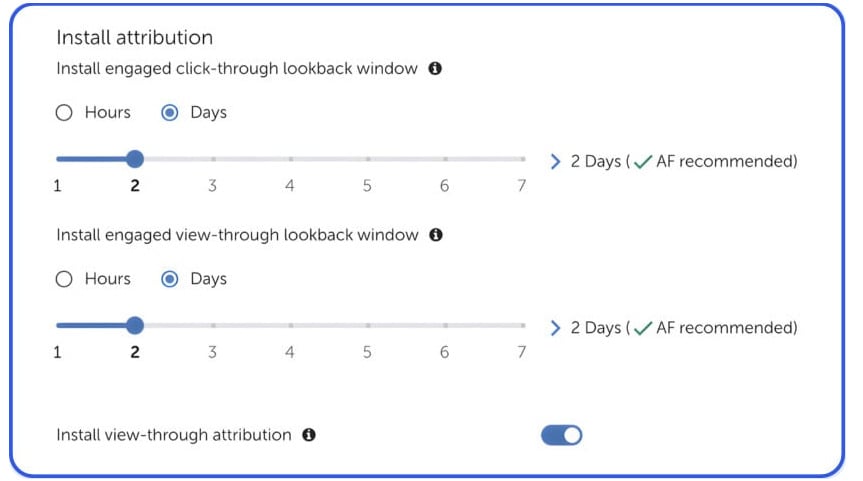
1. Configure how install data is sent to mDSP.
Lookback Windows:
- Engaged Click-Through: Set to 2 Days.
- Engaged View-Through: Set to 2 Days.
Install View-Through Attribution: Toggle ON.
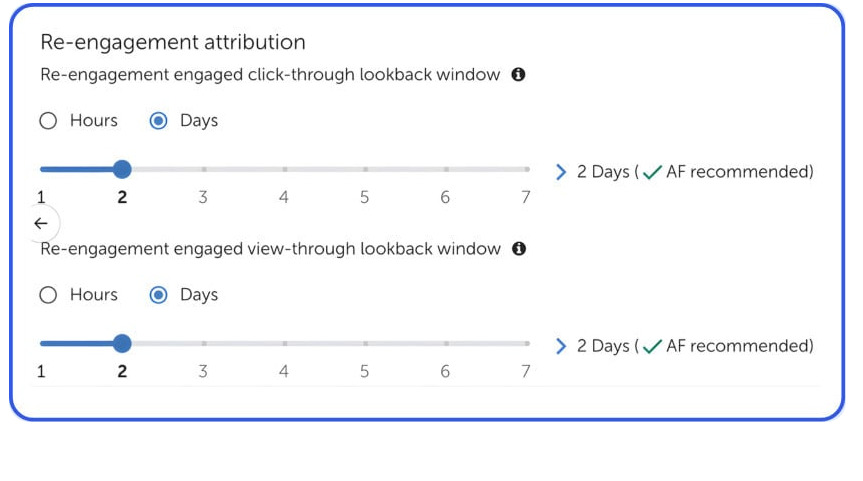
2. Configure how re-engagement data is sent to mDSP.
Lookback Windows:
- Engaged Click-Through: Set to 2 Days.
- Engaged View-Through: Set to 2 Days.
Re-Engagement View-Through Attribution: Toggle ON.
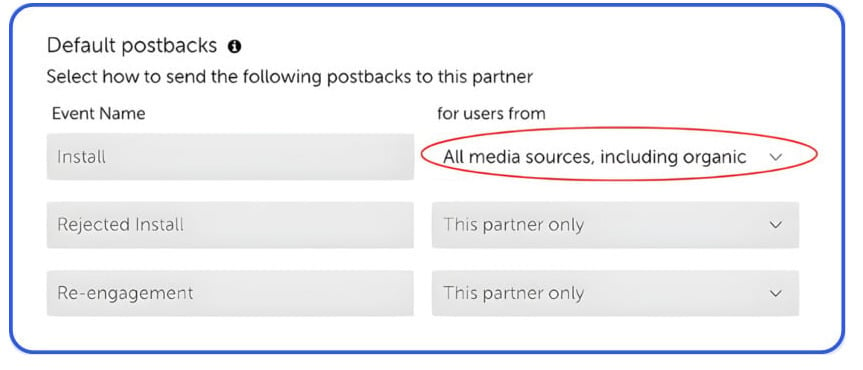
3. In the Default postbacks section, select "All media sources, including organic".
Map In-App Events
Mapping events allows mDSP to optimize for actions beyond the install, such as purchases or registrations.
1. Complete the basic setup:
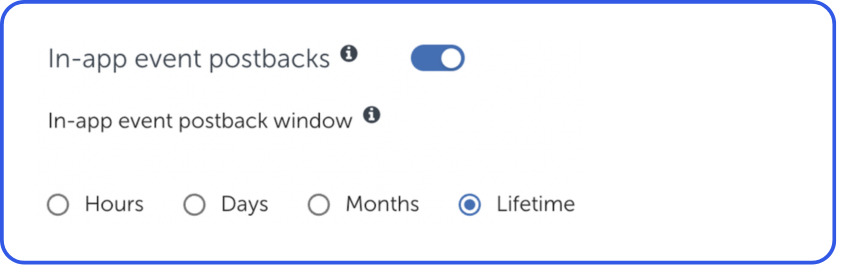
- Toggle In-App Event Postbacks to ON.
- Postback Window: Select Lifetime.
2. Add your events:
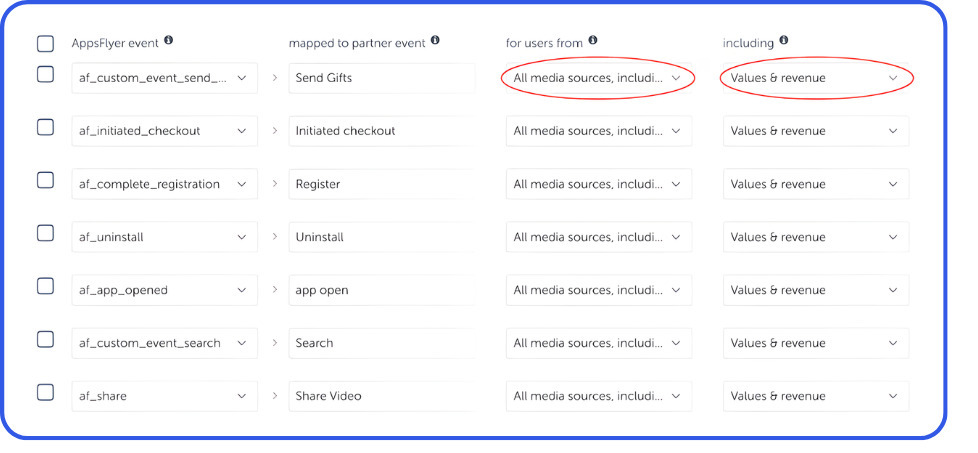
- Click Add Event and select all the SDK Event Names (e.g., af_complete_registration) you'd like to share.
- Map it to the corresponding Partner Event Identifier under the "Mapped to partner event" section (e.g., purchase).
- Under the "for users from" section, select "All media sources, including organic."
- Under the "including" section, select "values and revenues" if applicable.
💡 The more events you map, the better.
We strongly encourage building a comprehensive event funnel.
Set Up Attribution Links
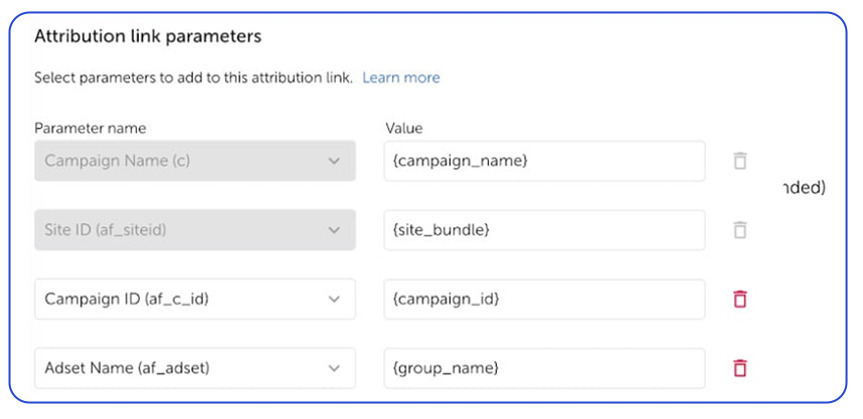
1. Leave the Attribution Link Parameters as default.
2. Define your attribution windows:
- Click-Through Lookback Window: Set to 7 Days.
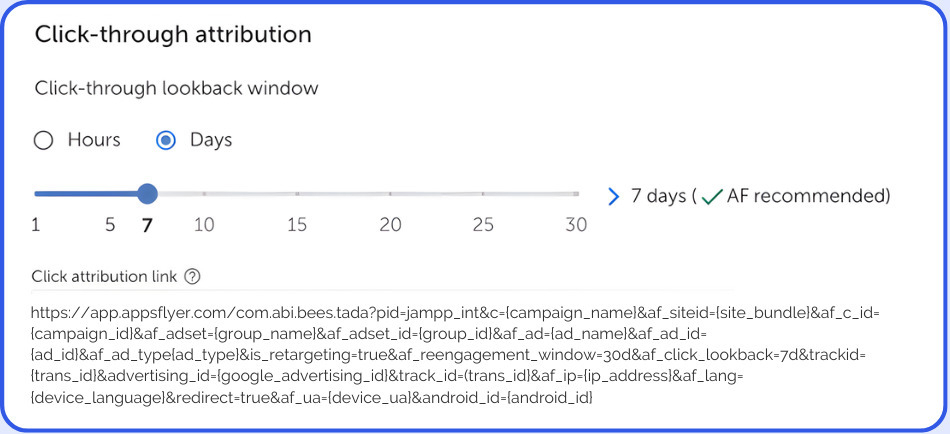
Note: mDSP uses a single-platform link by default. Only use OneLink if cross-platform redirection (Universal Links/App Links) is strictly required.
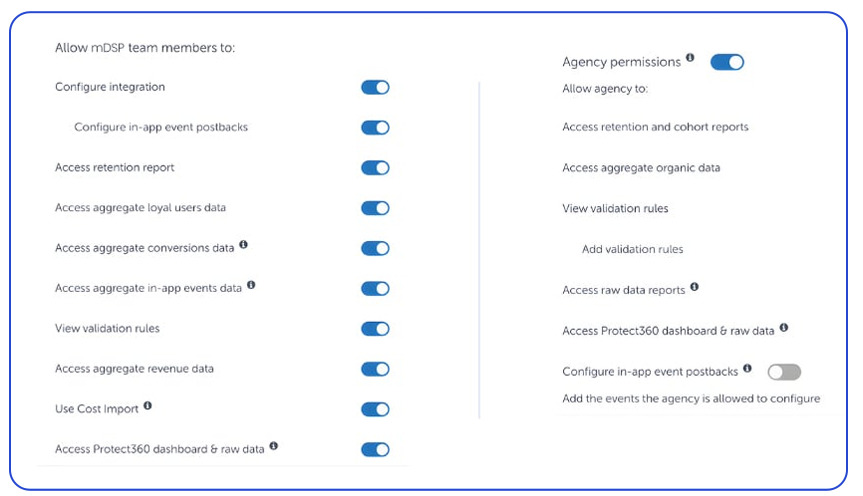
Permissions
Enabling these permissions allows our team to troubleshoot integration issues efficiently.
1. Toggle Permissions to ON.
mDSP already has default access, so there is no need to add an account manually.
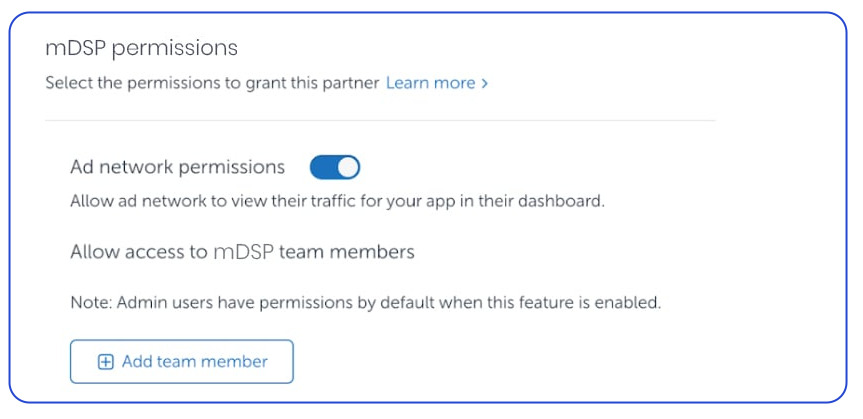
2. Set up the remaining toggles as follows: